> ## Documentation Index
> Fetch the complete documentation index at: https://help.aasaan.app/llms.txt
> Use this file to discover all available pages before exploring further.
# Reviews
> Manage product reviews
### Manage Reviews
In aasaan, you can manage reviews left by customers on your website. You can approve them, reply to them, and mark them as trash or spam.
To manage your reviews:
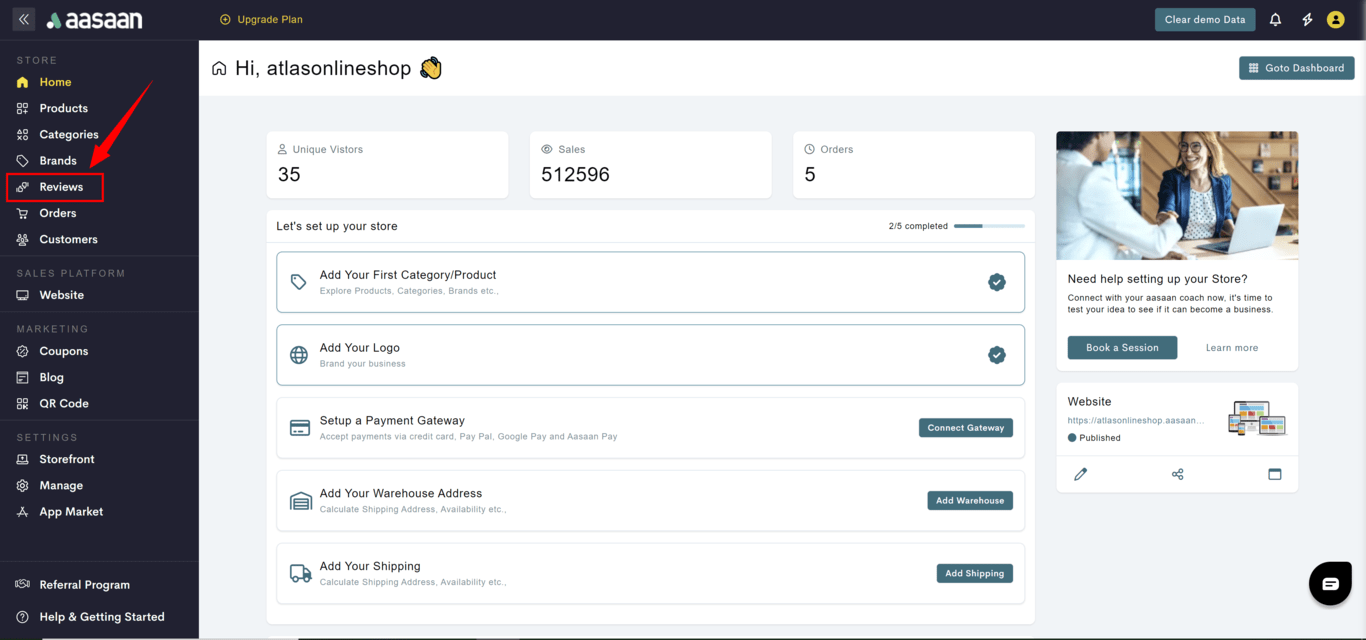
* Log in to your aasaan desktop admin panel and click on **Reviews**.
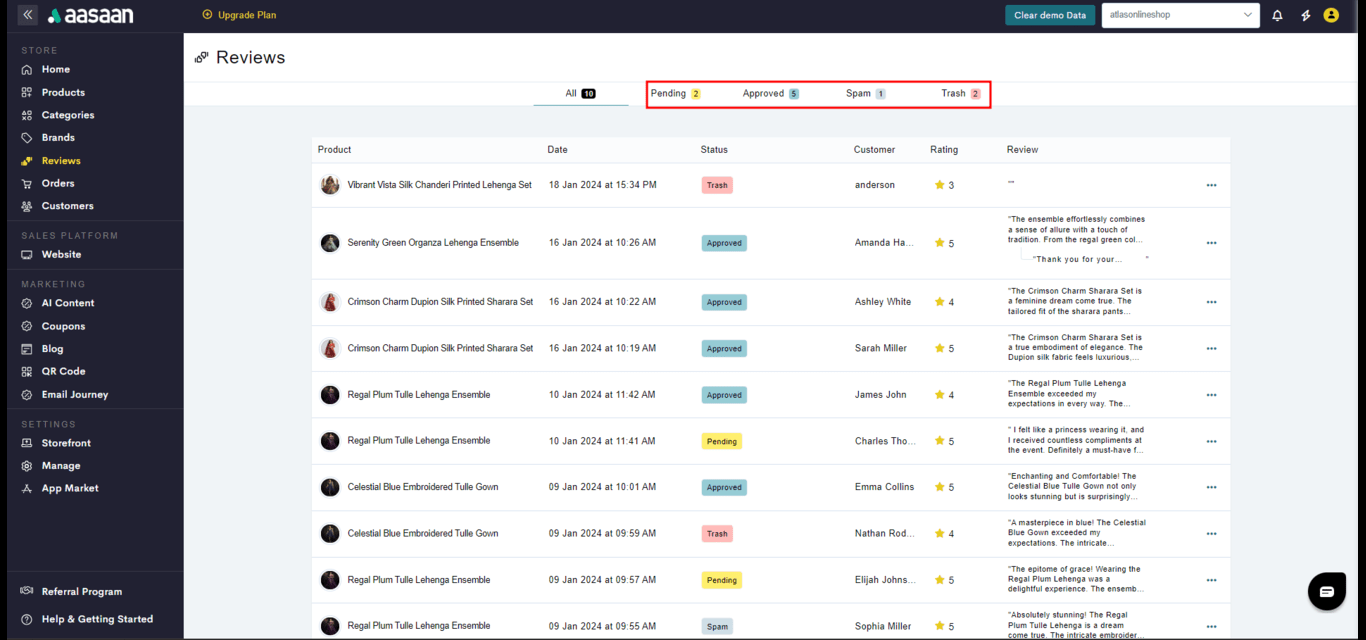
* Reviews are made available in multiple tabs based on various review status like:
* Pending
* Approved
* Spam
* Trash
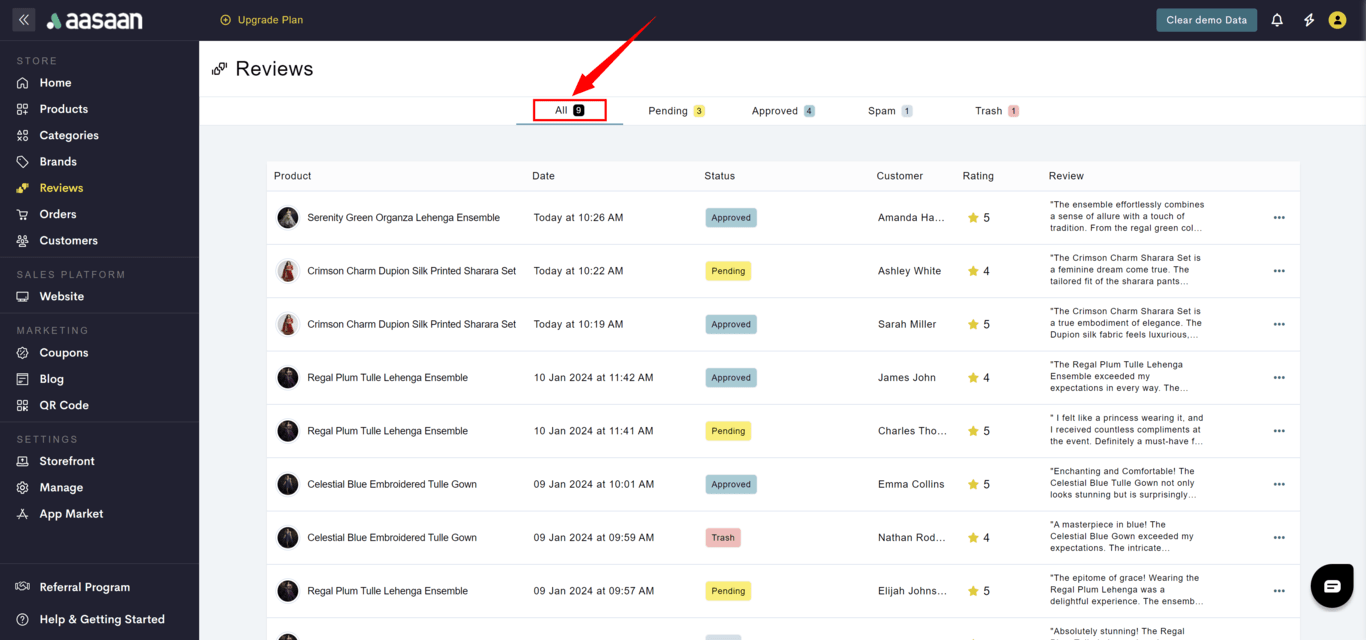
* There is an **ALL** tab which lists all the reviews irrespective of the status.
The reviews provided by your customer are show in the product page only after they are marked as approved. You can also auto approve the reviews by enabling the review setting. To know how to enable this setting, [Click Here](store-settings#reviews)
 ### Review - Approved
The steps to approve a review is as follows:
* Log in to your aasaan desktop admin panel and click on **Reviews**.
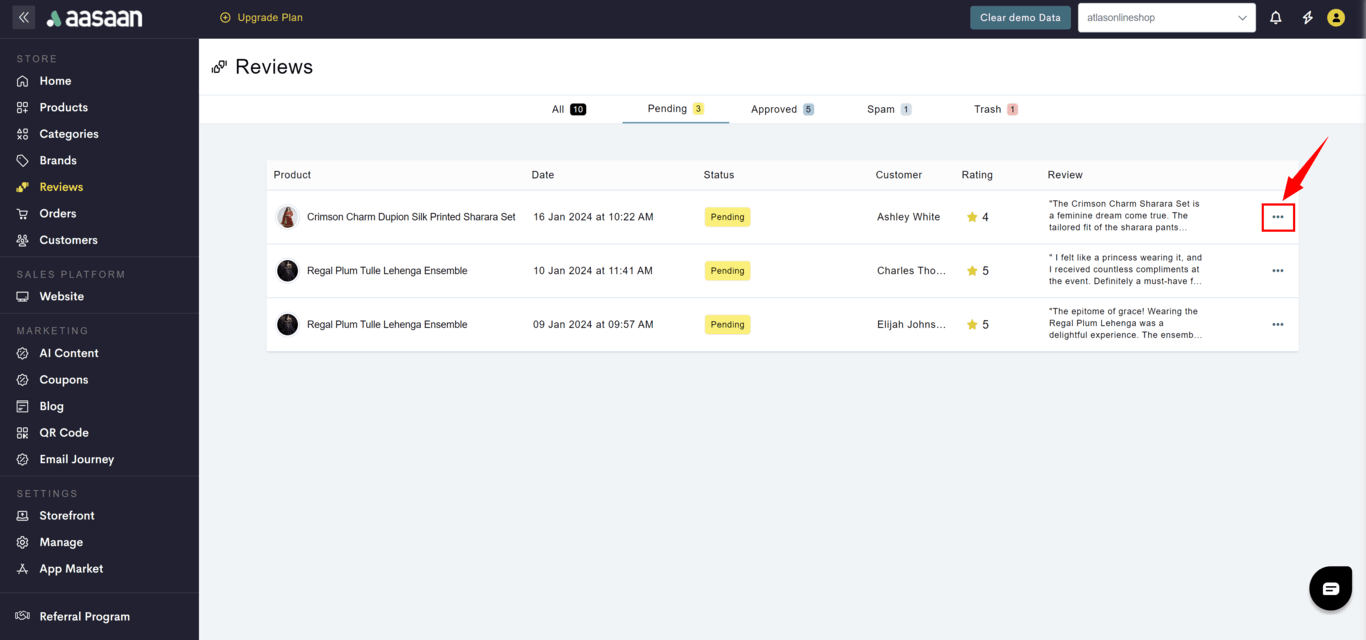
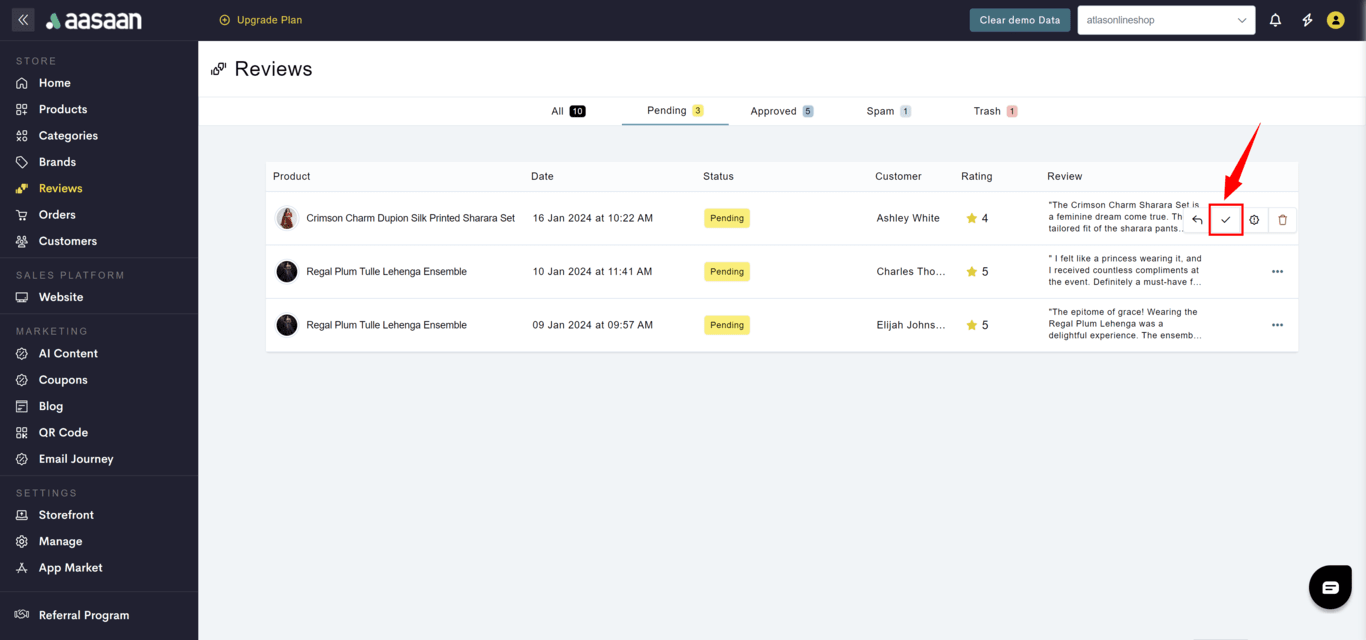
* Click on **...** at the review you want to approve and click on Approve.
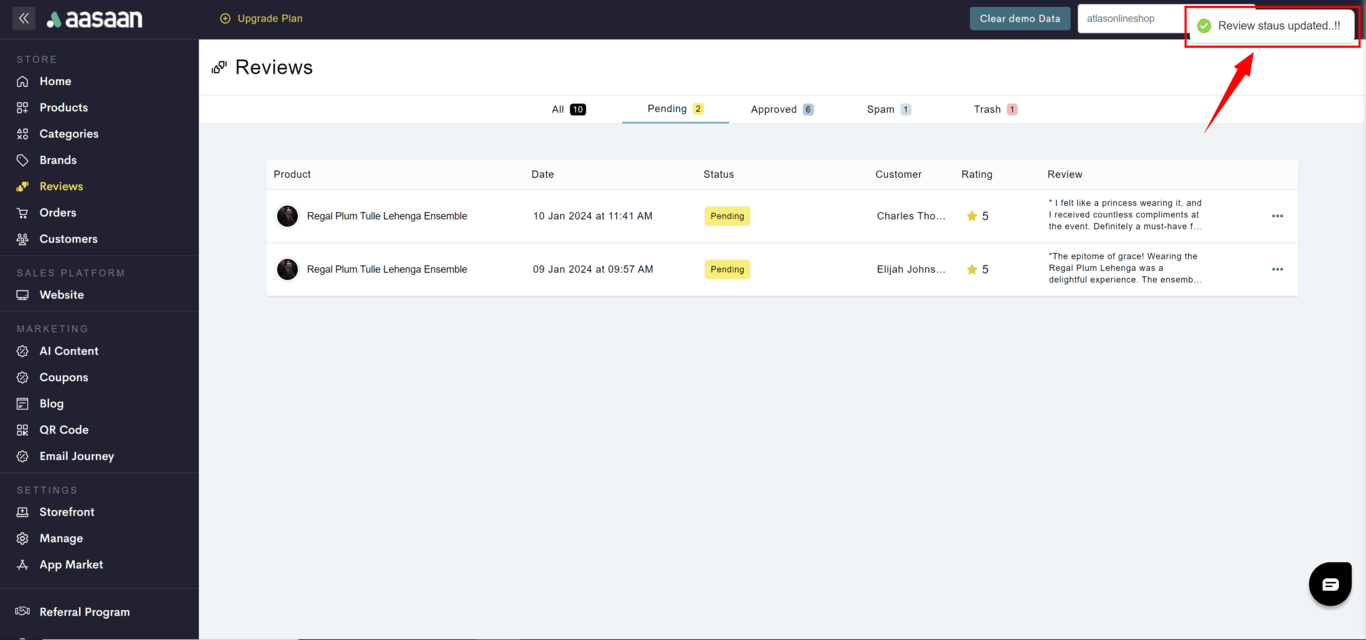
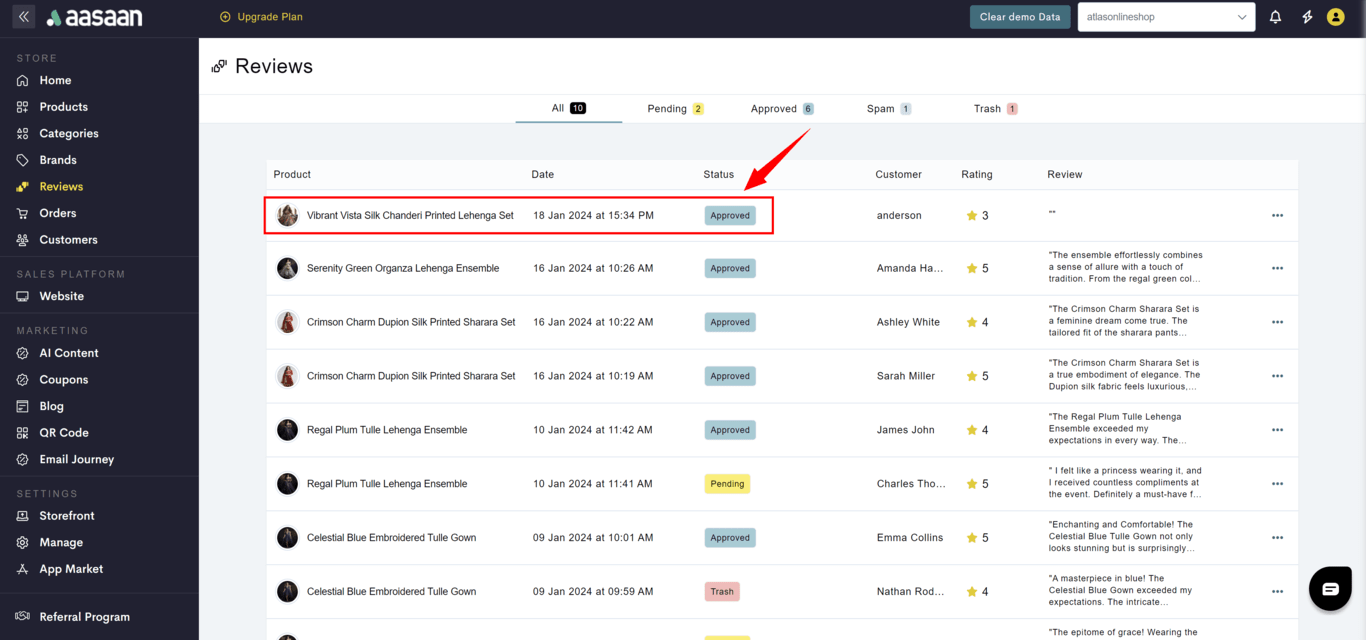
* You will see that the review status is now approved.
### Review - Approved
The steps to approve a review is as follows:
* Log in to your aasaan desktop admin panel and click on **Reviews**.
* Click on **...** at the review you want to approve and click on Approve.
* You will see that the review status is now approved.
 ### Review - Reply
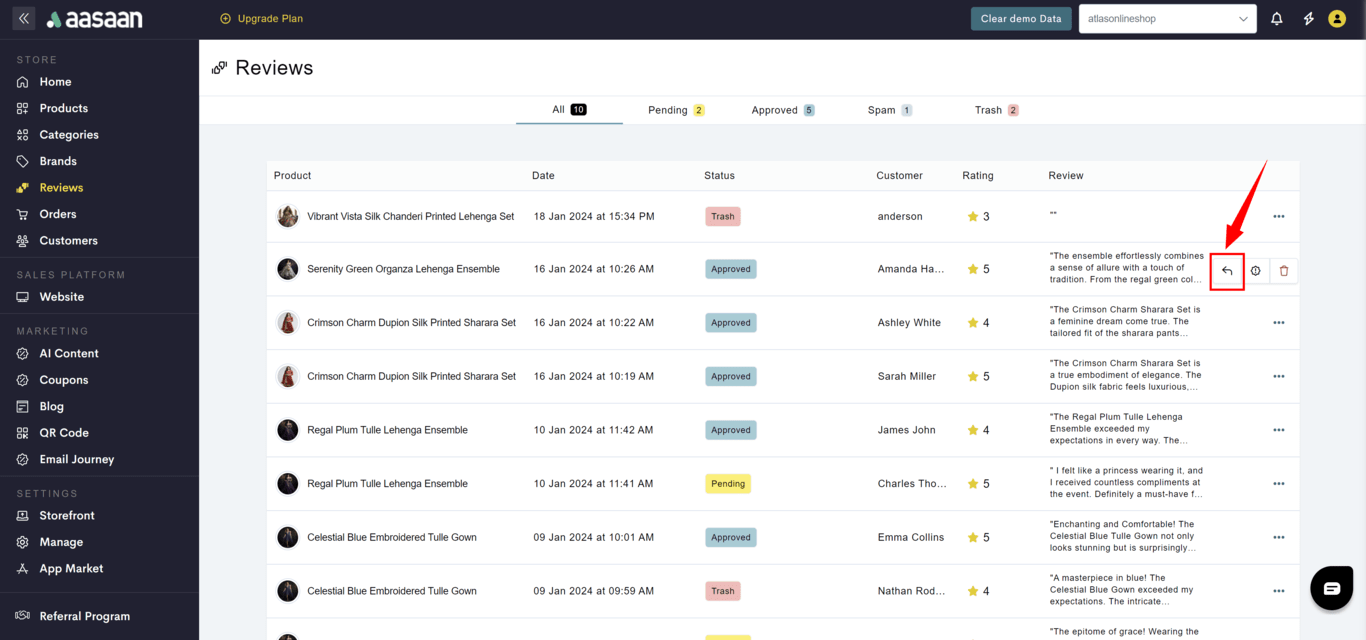
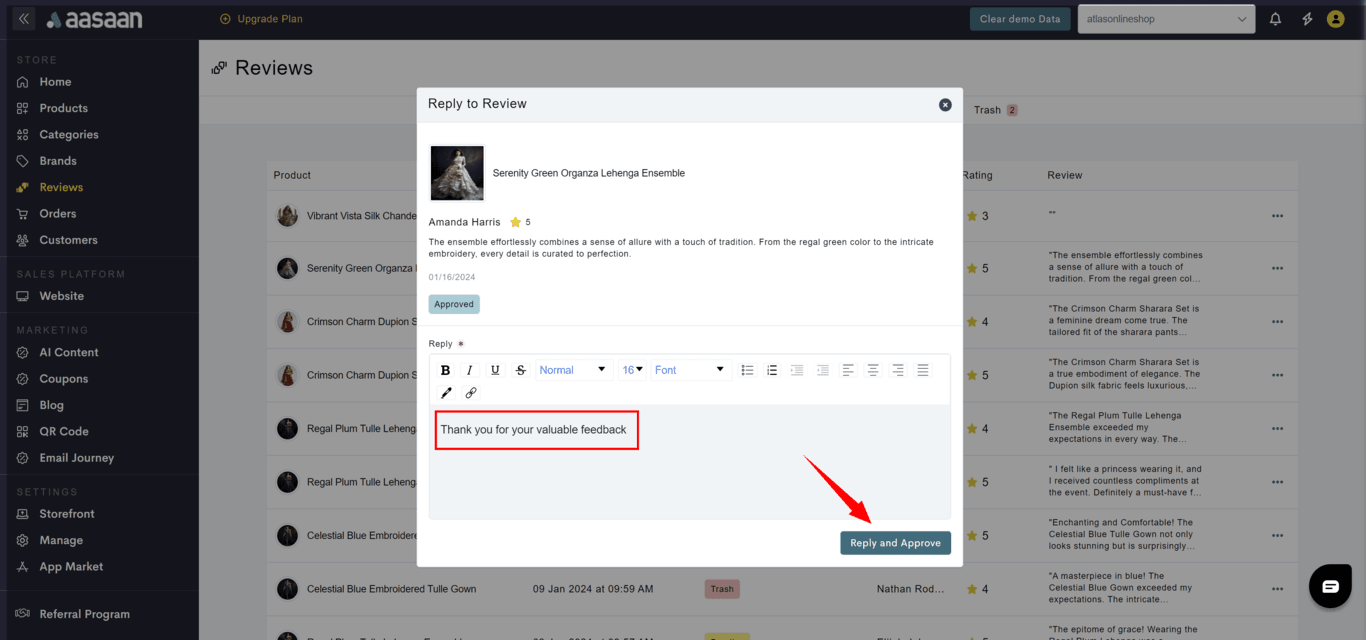
The steps to give reply to a review is as follows:
* Log in to your aasaan desktop admin panel and click on **Reviews**.
* Click on **...** at the review you want to send a reply and click on Reply.
* Provide your response.
* Click on **Reply and Approve**
### Review - Reply
The steps to give reply to a review is as follows:
* Log in to your aasaan desktop admin panel and click on **Reviews**.
* Click on **...** at the review you want to send a reply and click on Reply.
* Provide your response.
* Click on **Reply and Approve**
 ### Review - Spam
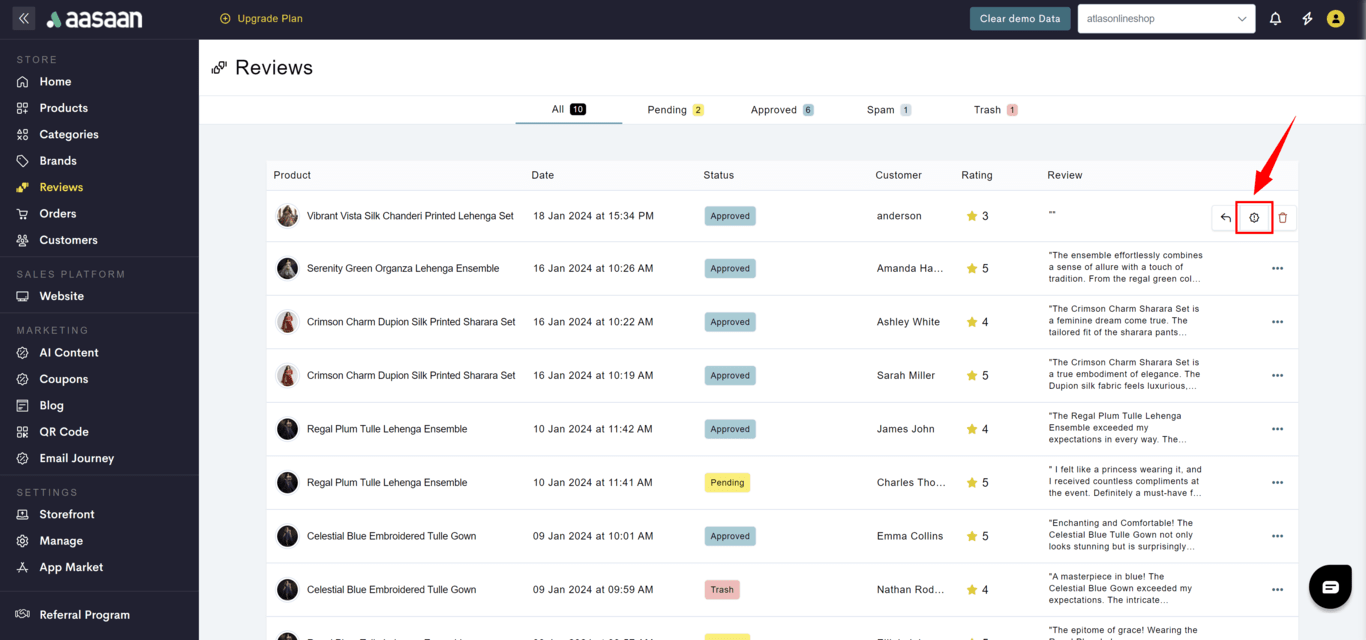
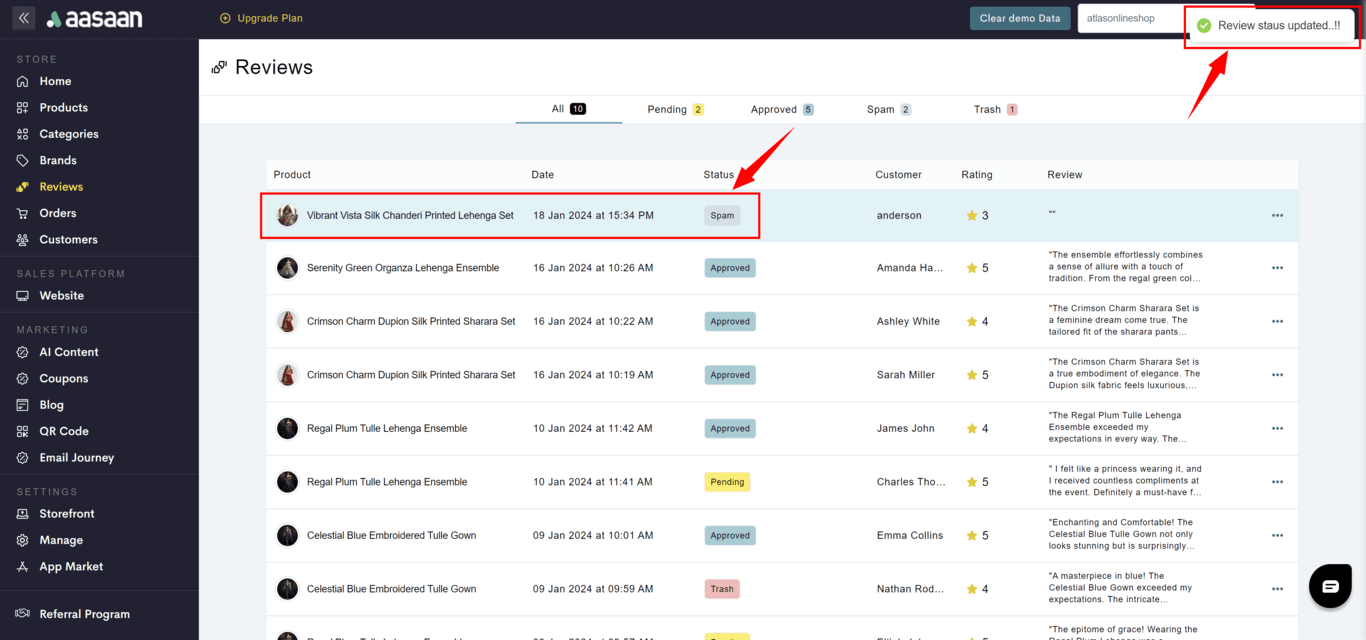
The steps to mark a review as spam is as follows:
* Log in to your aasaan desktop admin panel and click on **Reviews**.
* Click on **...** at the review you want to mark as spam and click on Spam.
* You will see that the review status is now marked as spam.
### Review - Spam
The steps to mark a review as spam is as follows:
* Log in to your aasaan desktop admin panel and click on **Reviews**.
* Click on **...** at the review you want to mark as spam and click on Spam.
* You will see that the review status is now marked as spam.
 ### Review - Trash
The steps to mark a review as trash is as follows:
* Log in to your aasaan desktop admin panel and click on **Reviews**.
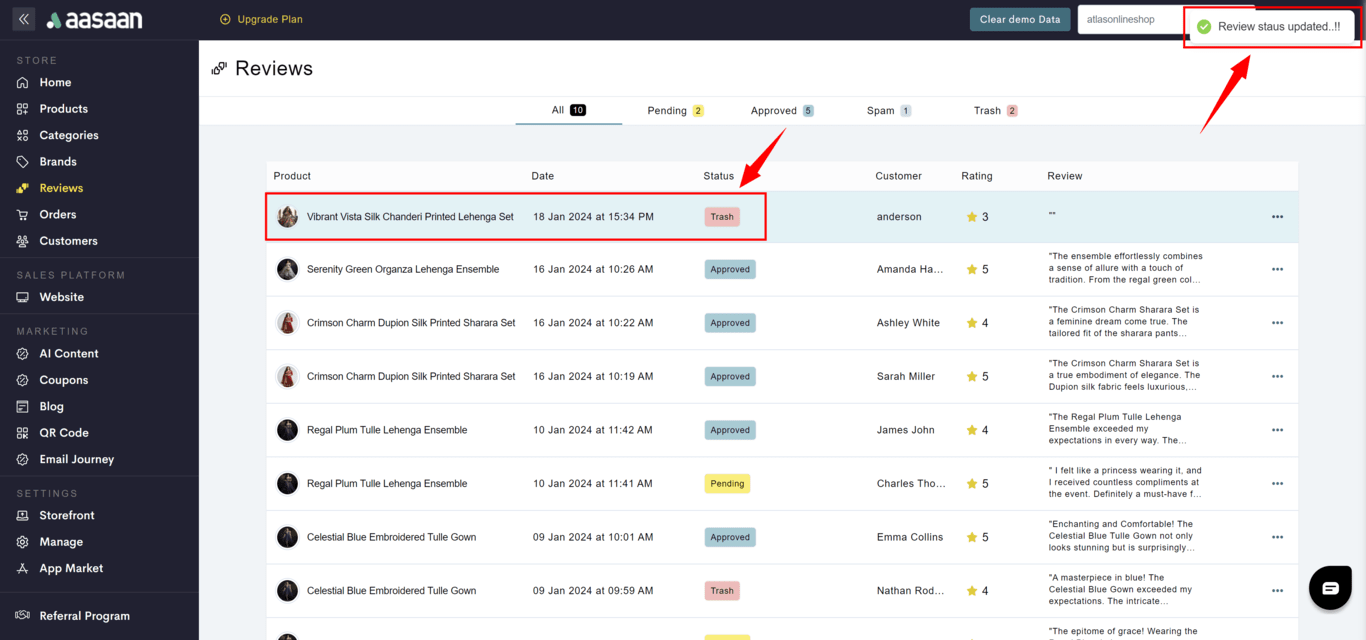
* Click on **...** at the review you want to mark as trash and click on Trash.
* You will see that the review status is now marked as trash.
### Review - Trash
The steps to mark a review as trash is as follows:
* Log in to your aasaan desktop admin panel and click on **Reviews**.
* Click on **...** at the review you want to mark as trash and click on Trash.
* You will see that the review status is now marked as trash.