> ## Documentation Index
> Fetch the complete documentation index at: https://help.aasaan.app/llms.txt
> Use this file to discover all available pages before exploring further.
# Coupons
> Add Discount Coupons to your website
On your aasaan store, you can create discount coupons for special sales like festivals and end of season sales.
These coupons will apply to your entire store. Here is how you do it.
## How to Access Coupons
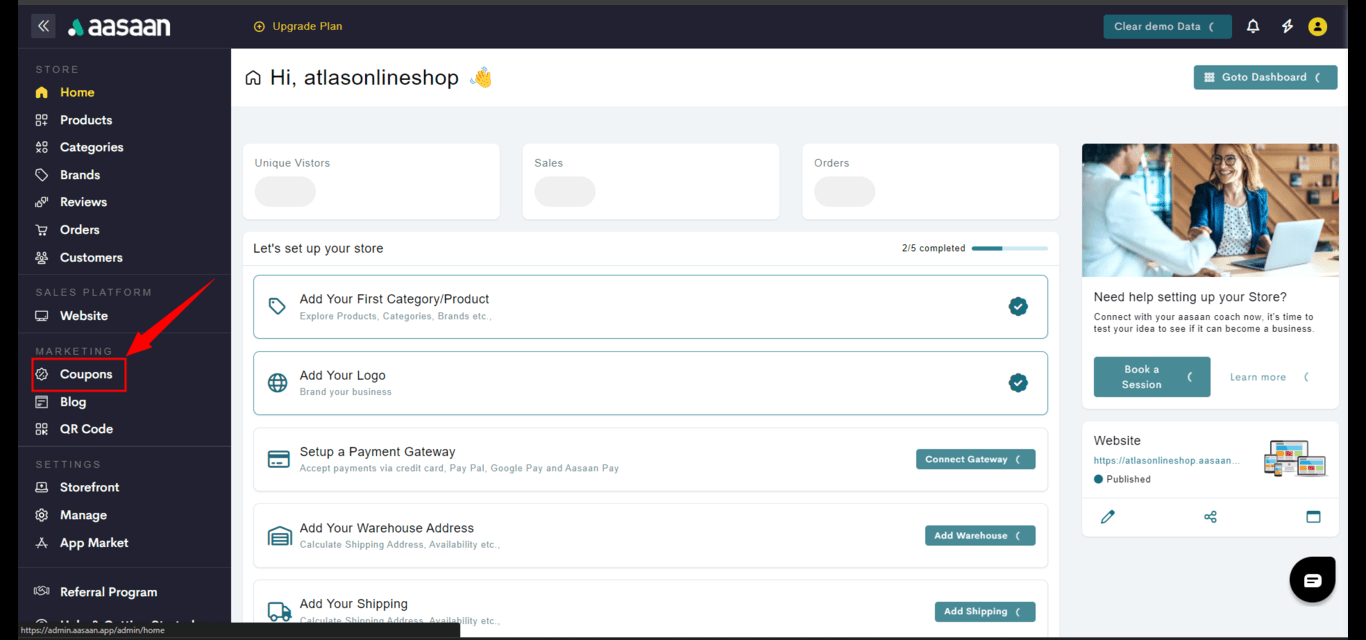
Log in to your aasaan desktop admin panel, and click on **Coupons**.
 ## Add a Coupon
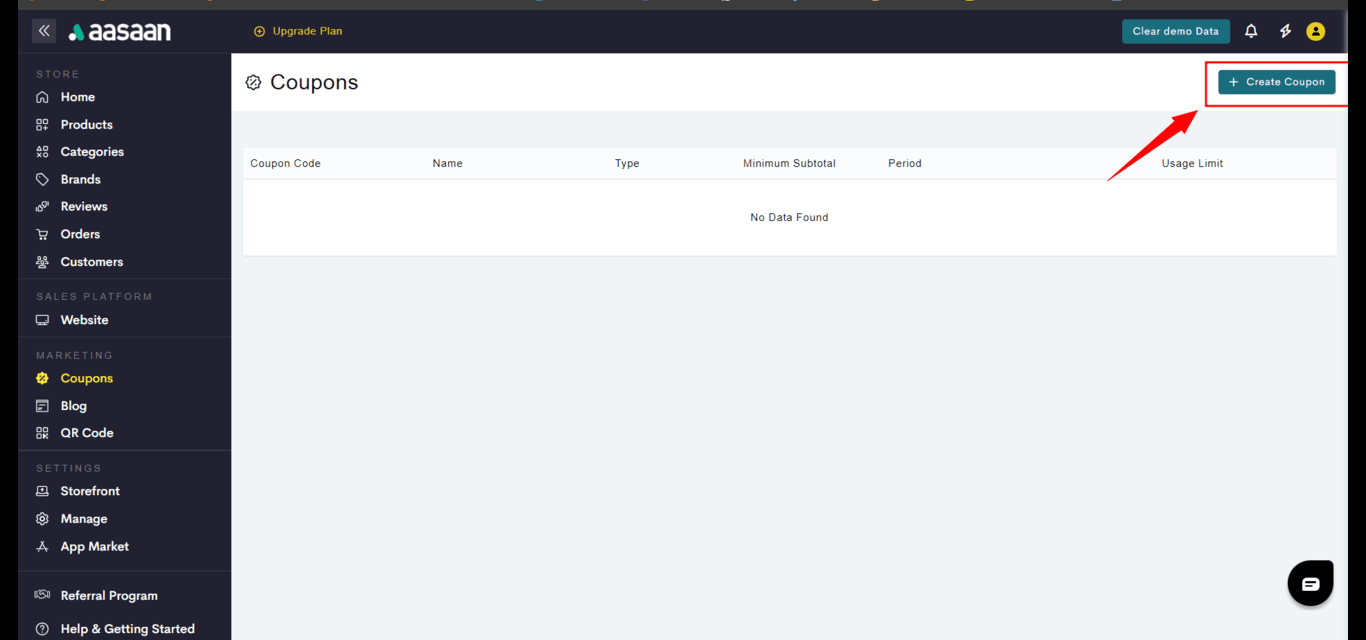
Click on the button **+ Create Coupon**.
## Add a Coupon
Click on the button **+ Create Coupon**.
 ## Coupon Details
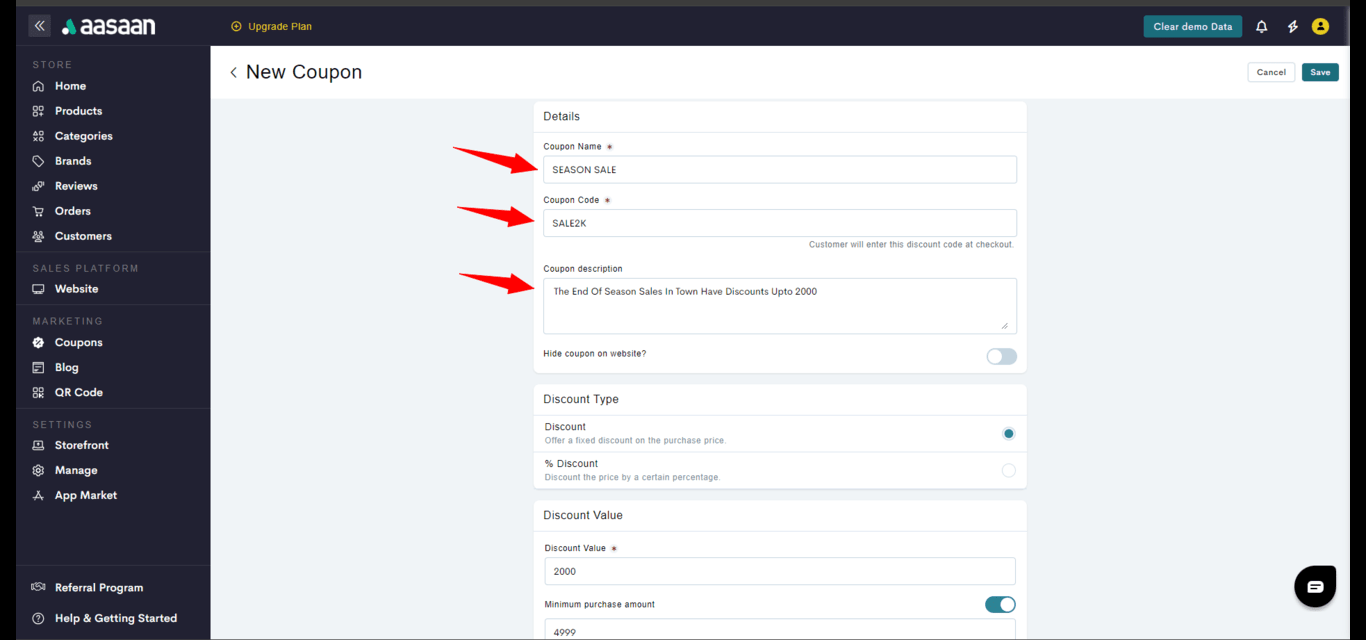
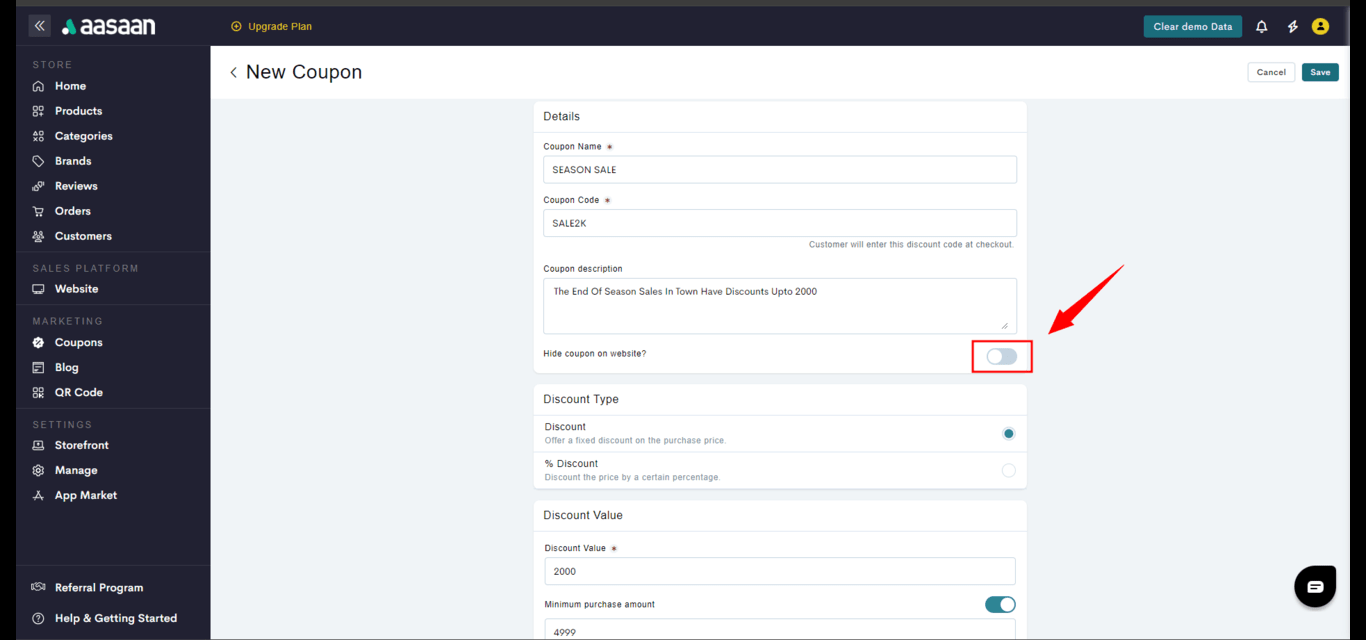
Enter the **coupon name** and the **discount code** your customers will have to enter. You can also enter a **coupon description**.
## Coupon Details
Enter the **coupon name** and the **discount code** your customers will have to enter. You can also enter a **coupon description**.
Note: Discount codes are case-sensitive. For example, DUMMY1 and Dummy1 will be considered different discount codes.
## Coupon Visibility
Coupons are displayed on the product page by default. If you do not wish to display your coupon, you can enable the **Hide coupon on the website?** toggle.
 ## Coupon Type
Choose your **coupon type**. In this guide, we will click on Discount and offer a fixed price discount coupon.
## Coupon Type
Choose your **coupon type**. In this guide, we will click on Discount and offer a fixed price discount coupon.
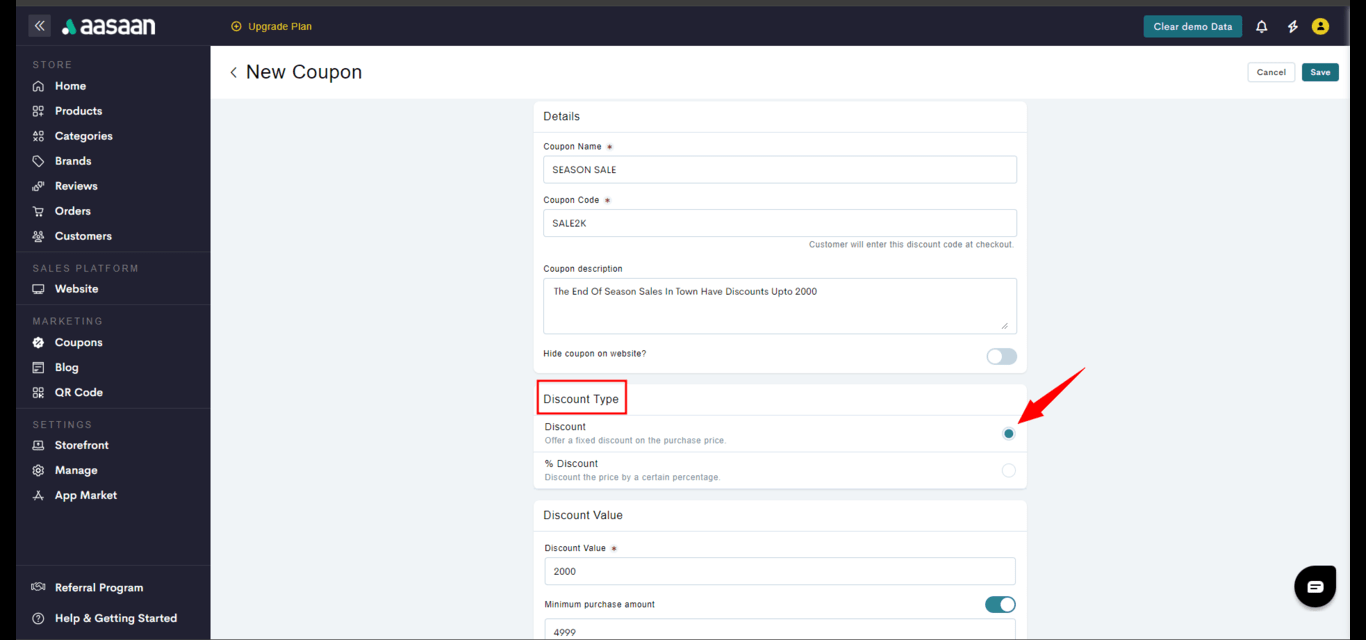
Note: The steps that follow are the same even if you choose to create a percentage-based Discount.
## Discount Details
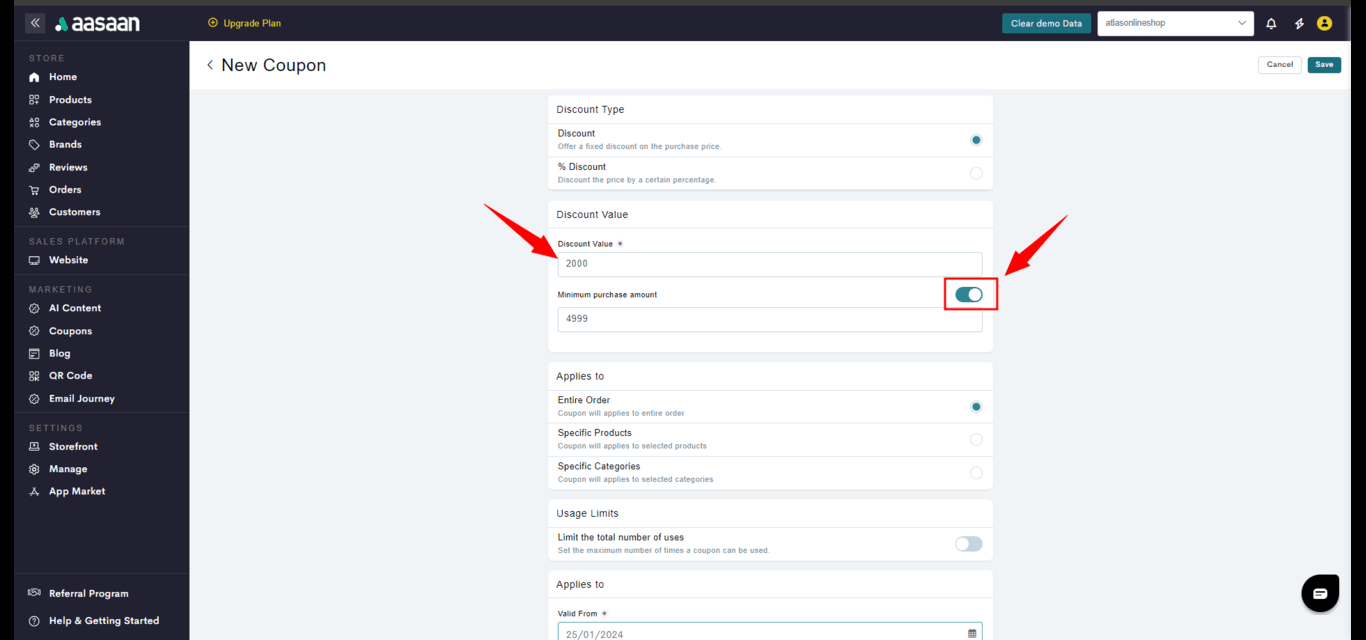
Enter the **discount value** and set the **minimum purchase amount** on which the coupon applies.
 Note: The feature of assigning channels to coupons is only available on the business plan subscription.
## Coupon Scope
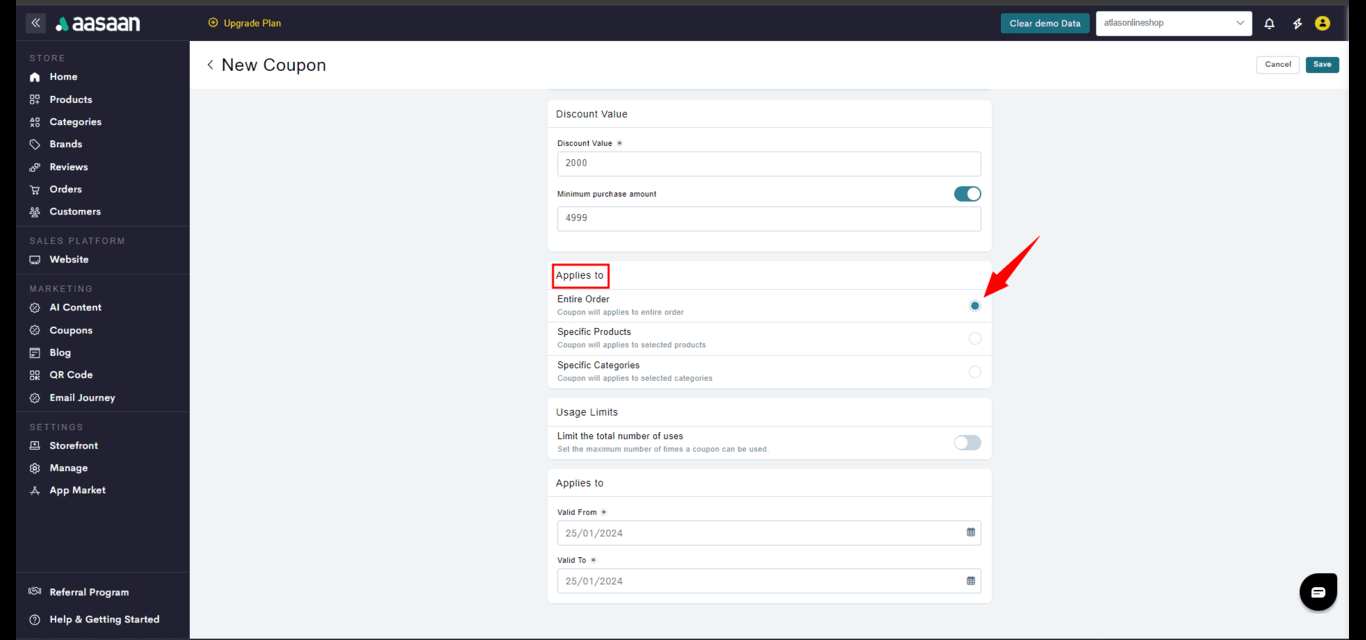
Choose the scope of the coupon. You need to decide whether the coupon applies to **specific categories**, **specific products**, or the customer's **entire order**. In this guide, we will create a coupon for the Entire Order.
Note: The feature of assigning channels to coupons is only available on the business plan subscription.
## Coupon Scope
Choose the scope of the coupon. You need to decide whether the coupon applies to **specific categories**, **specific products**, or the customer's **entire order**. In this guide, we will create a coupon for the Entire Order.
 ## Coupon Usage
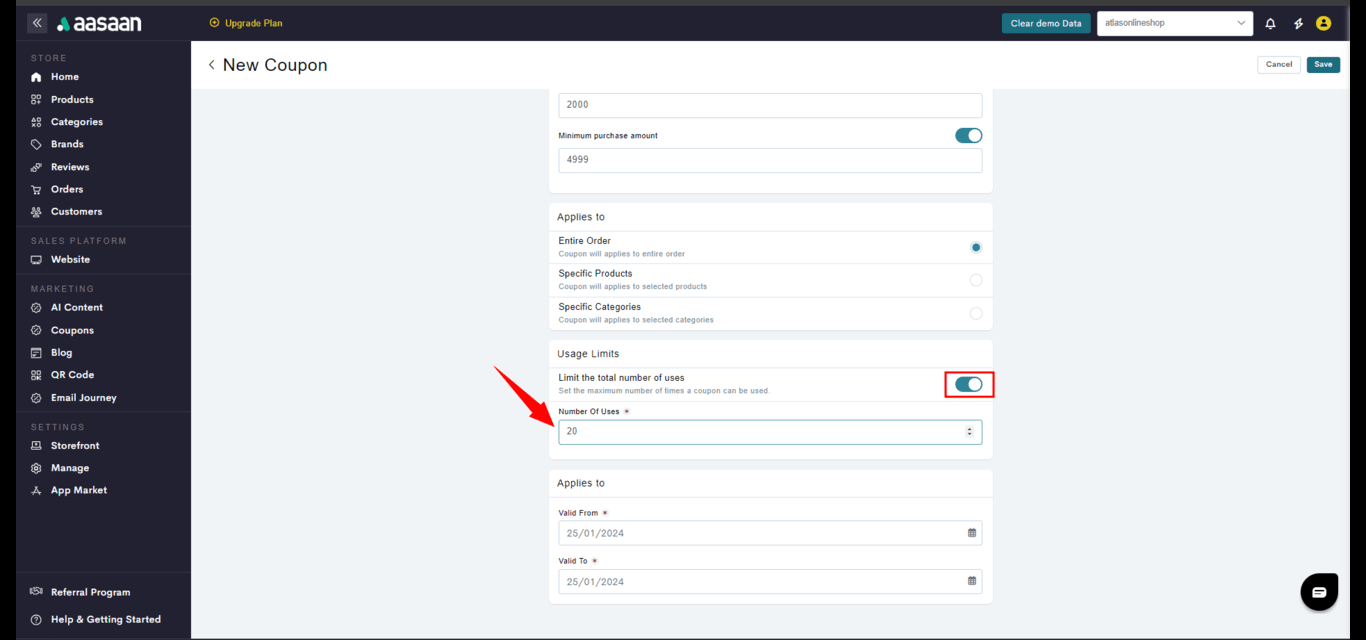
You can enable the toggle and set the total **number of times** the coupon can be used by your customers.
## Coupon Usage
You can enable the toggle and set the total **number of times** the coupon can be used by your customers.
 ## Coupon Duration
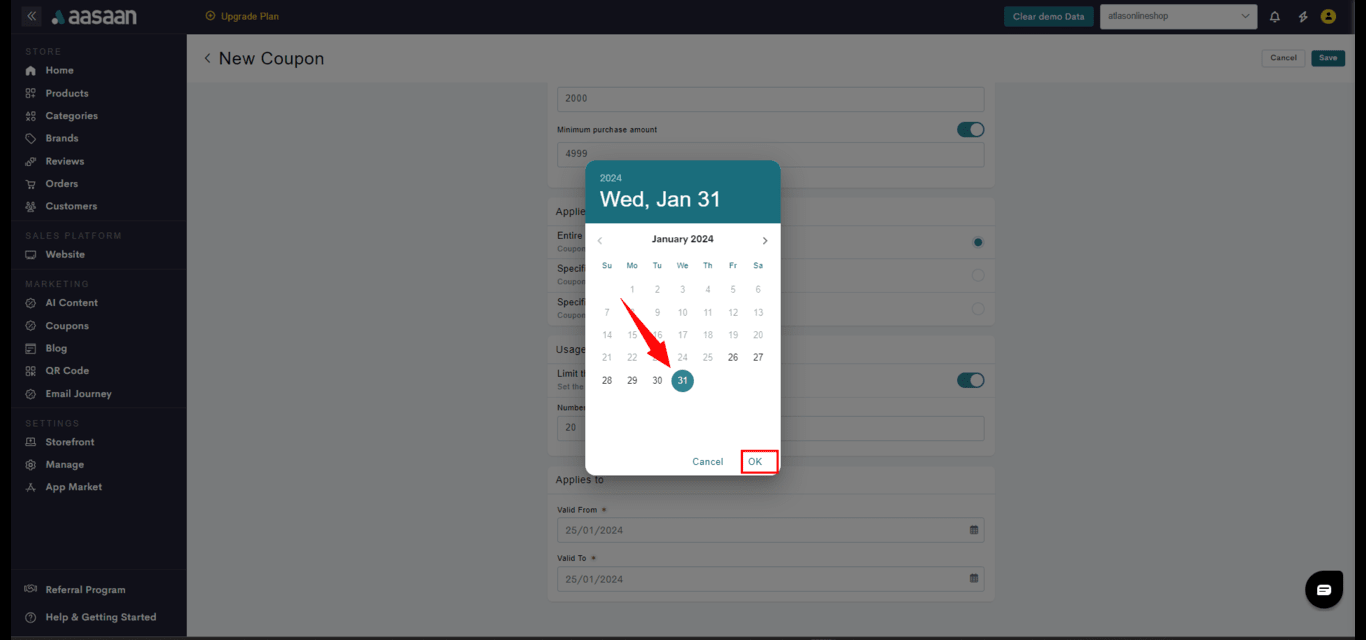
Choose the coupon's duration. Click on **Valid From** to select the start date and **Valid To** to select the end date.
## Coupon Duration
Choose the coupon's duration. Click on **Valid From** to select the start date and **Valid To** to select the end date.
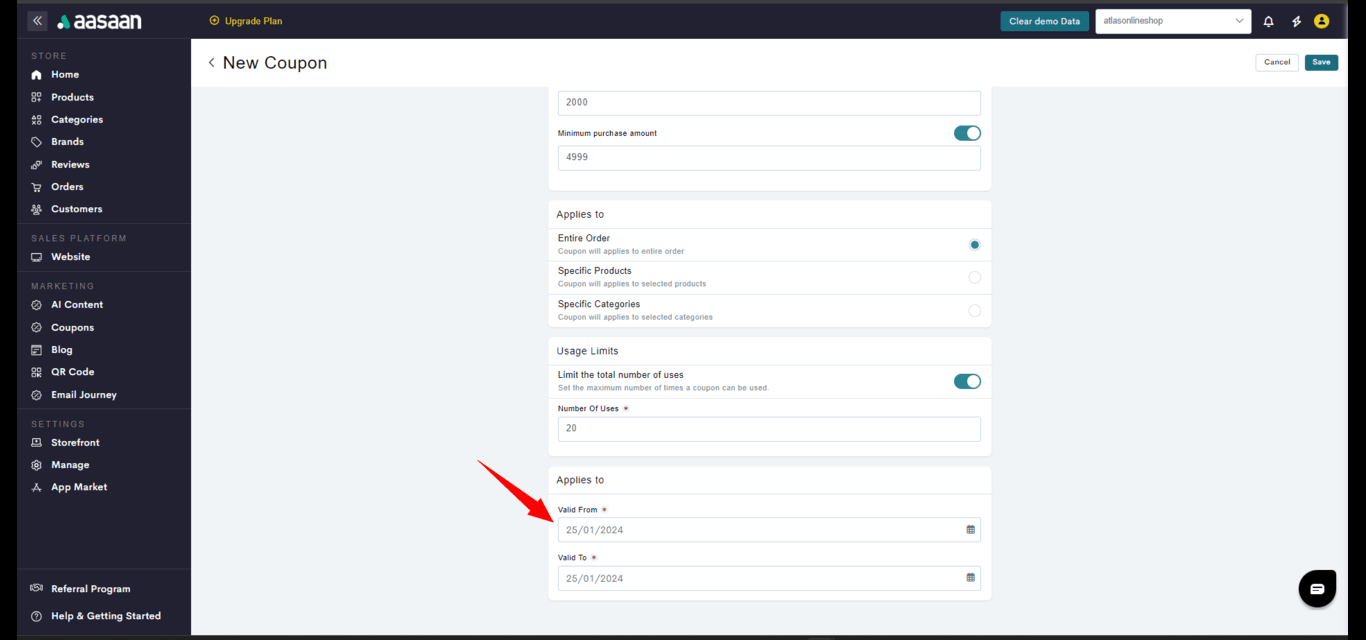 Upon clicking Valid From or Valid To, a calendar opens up where you can select your start and end dates.
 ## Save Coupon
Click on **Save** to save your coupon.
## Save Coupon
Click on **Save** to save your coupon.
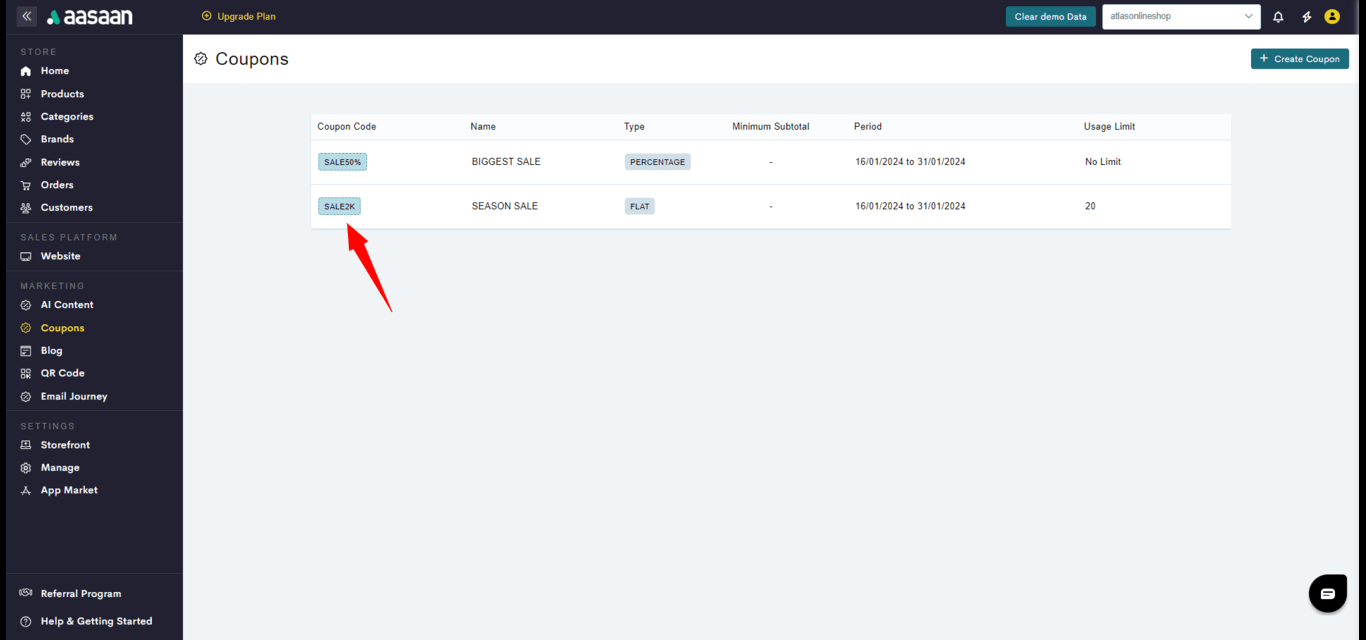
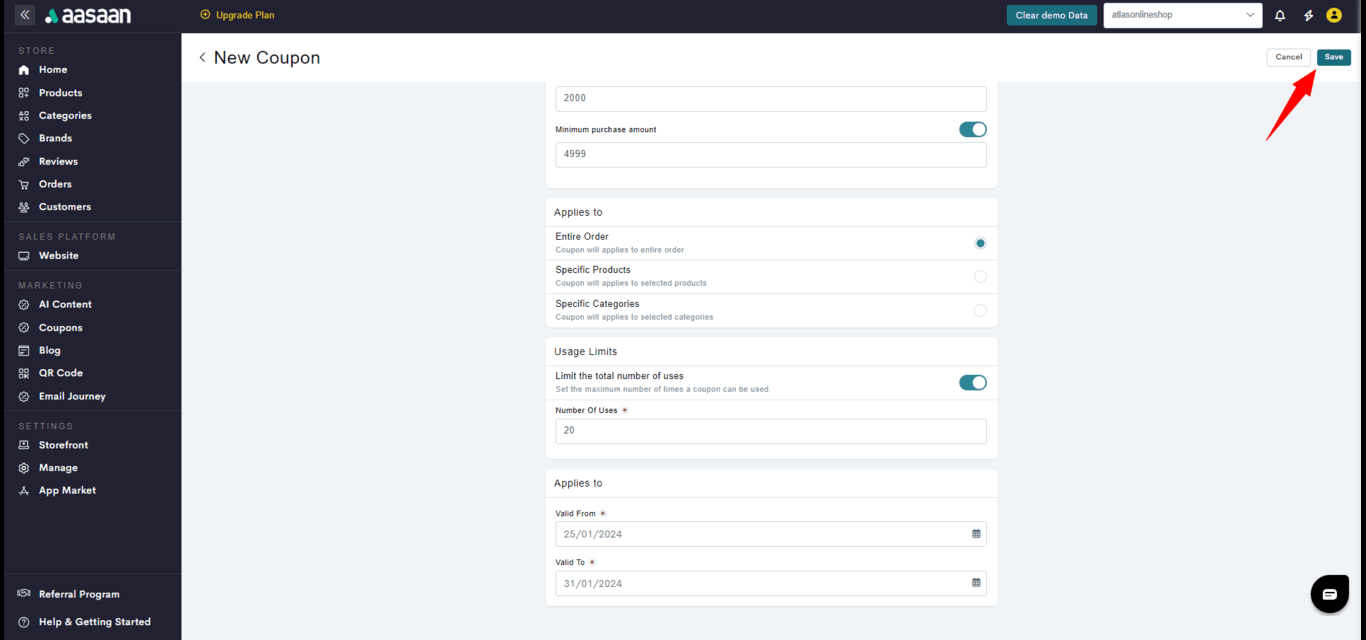 Your coupon has been successfully saved.