> ## Documentation Index
> Fetch the complete documentation index at: https://help.aasaan.app/llms.txt
> Use this file to discover all available pages before exploring further.
# Brands
> Manage brands in your store
One way to organize your products on your store is by categories. But did you know you could also organize them by brands? Here is how you can manage brands in your store.
## Add Brand
To add a brand to your store:
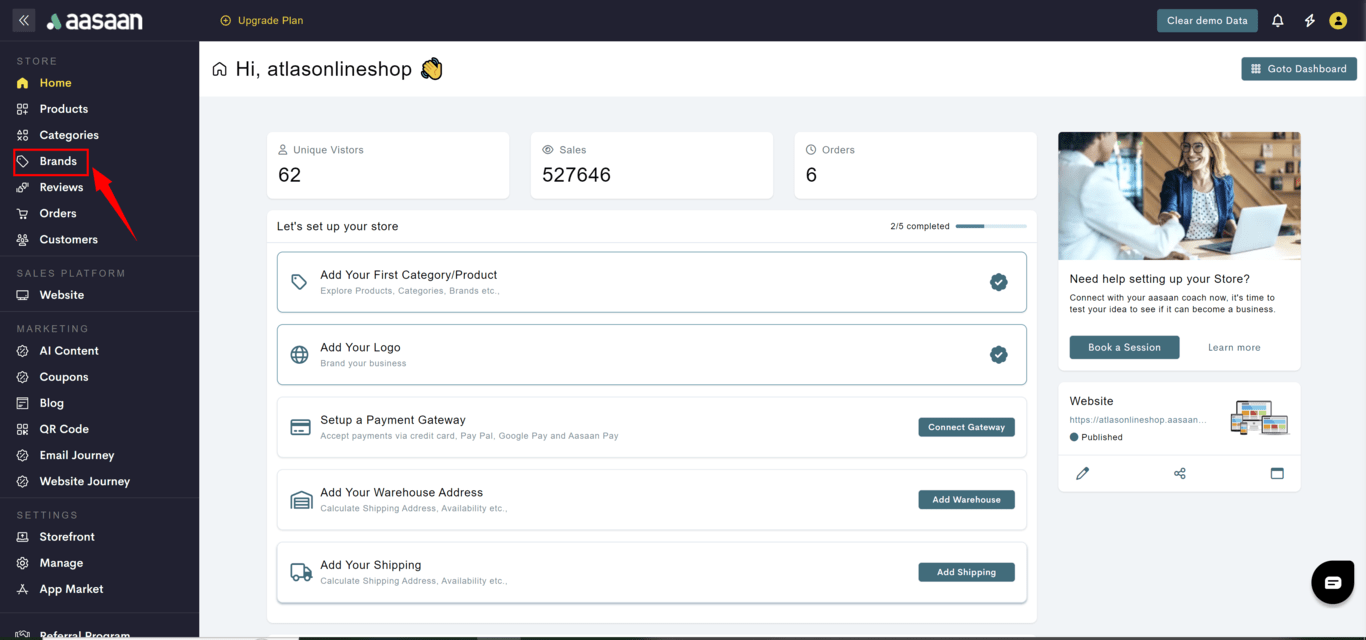
* Login to your aasaan desktop admin panel and click on **Brands**.
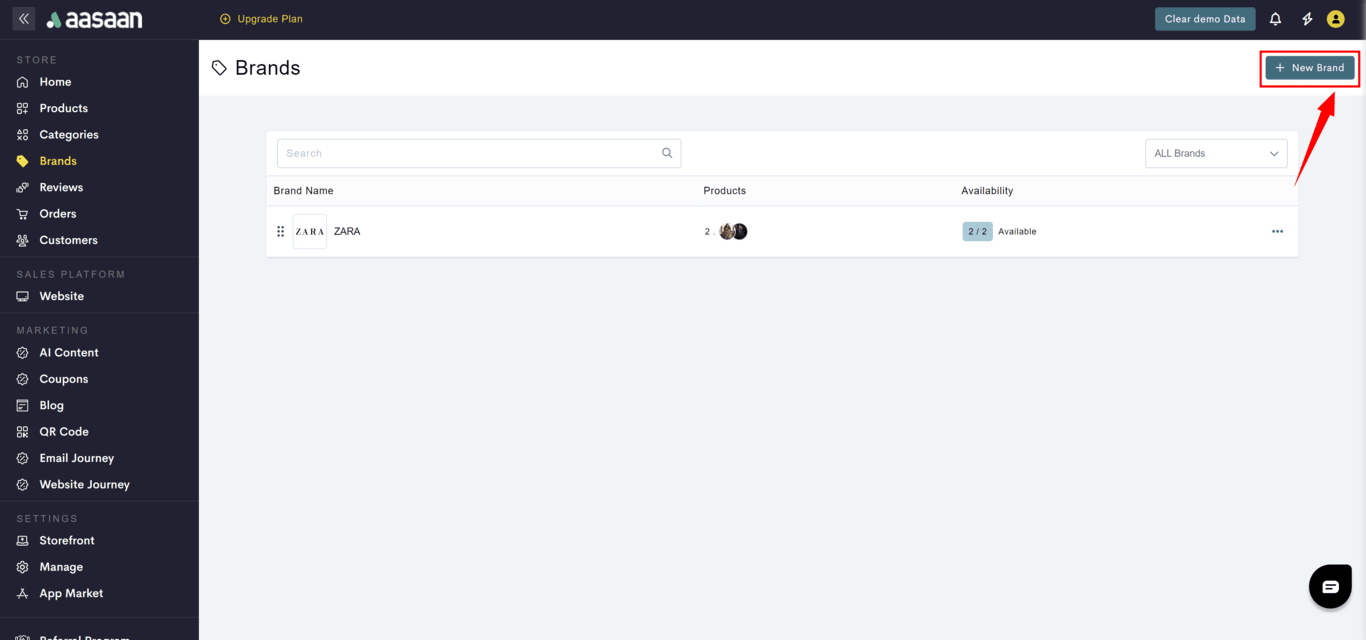
* Click on **+ New Brand**.
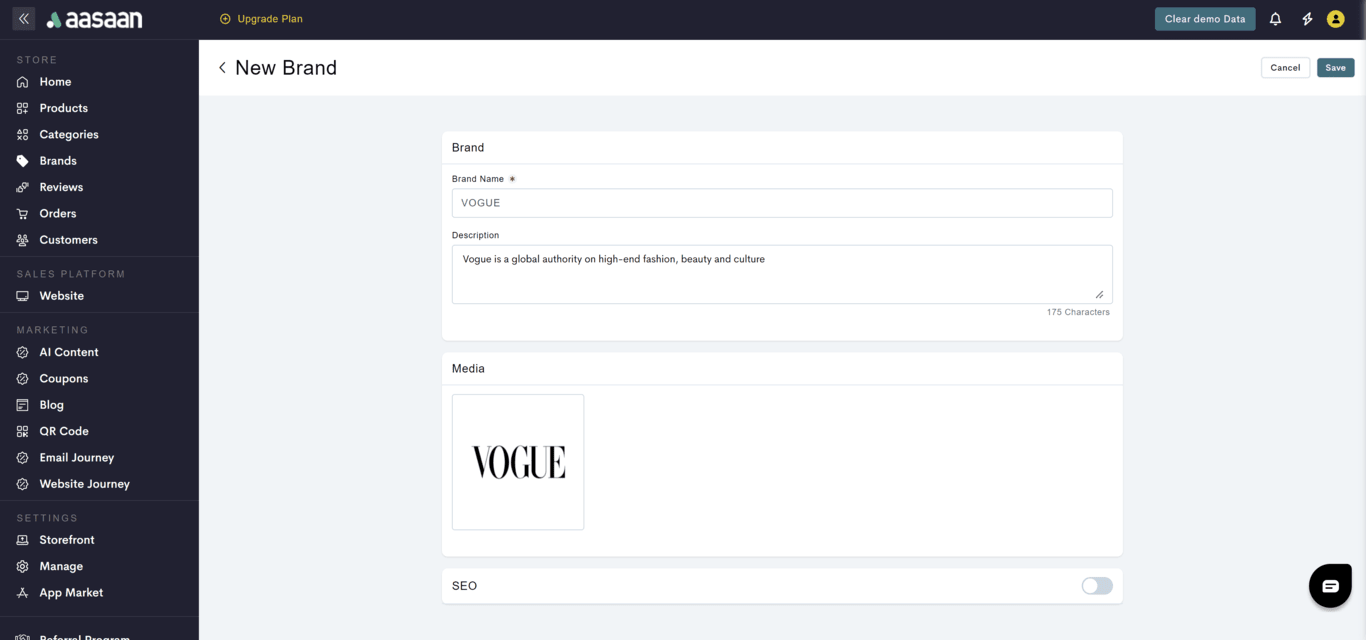
* Provide brand details like:
* Brand name
* Description
* Brand logo
* SEO information
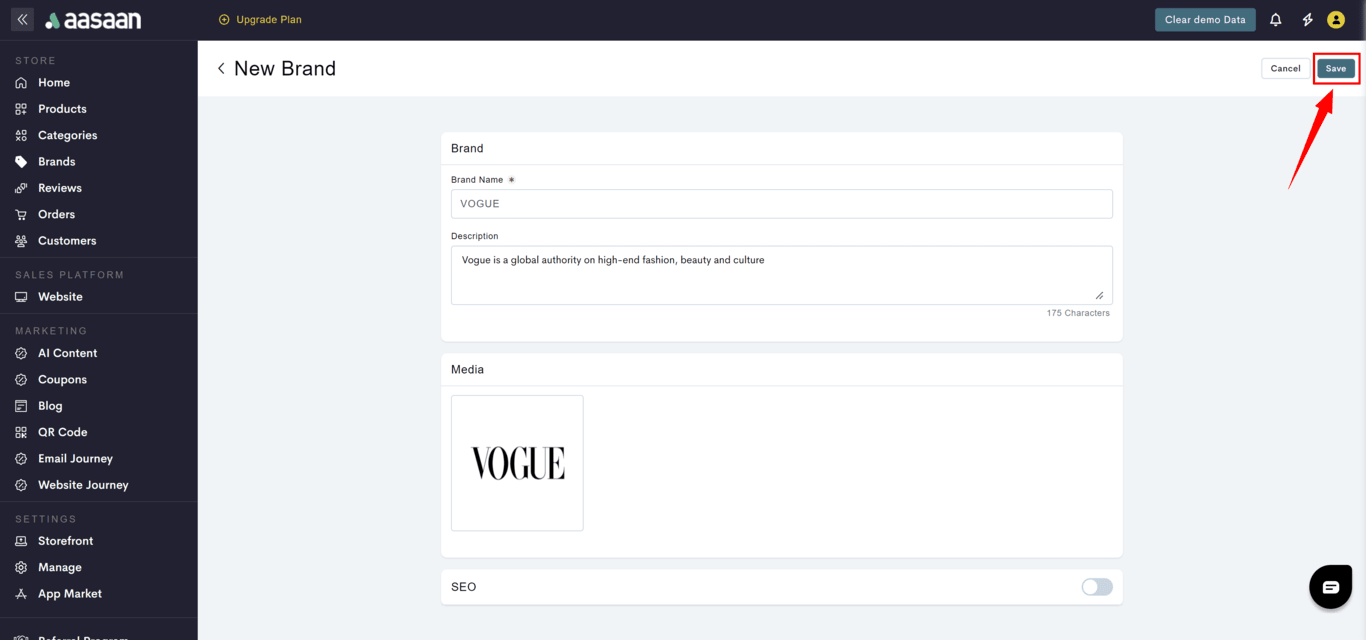
* Click on **Save**.
 ## Modify Brand
To modify a brand in your store:
* Login to your aasaan desktop admin panel and click on **Brands**.
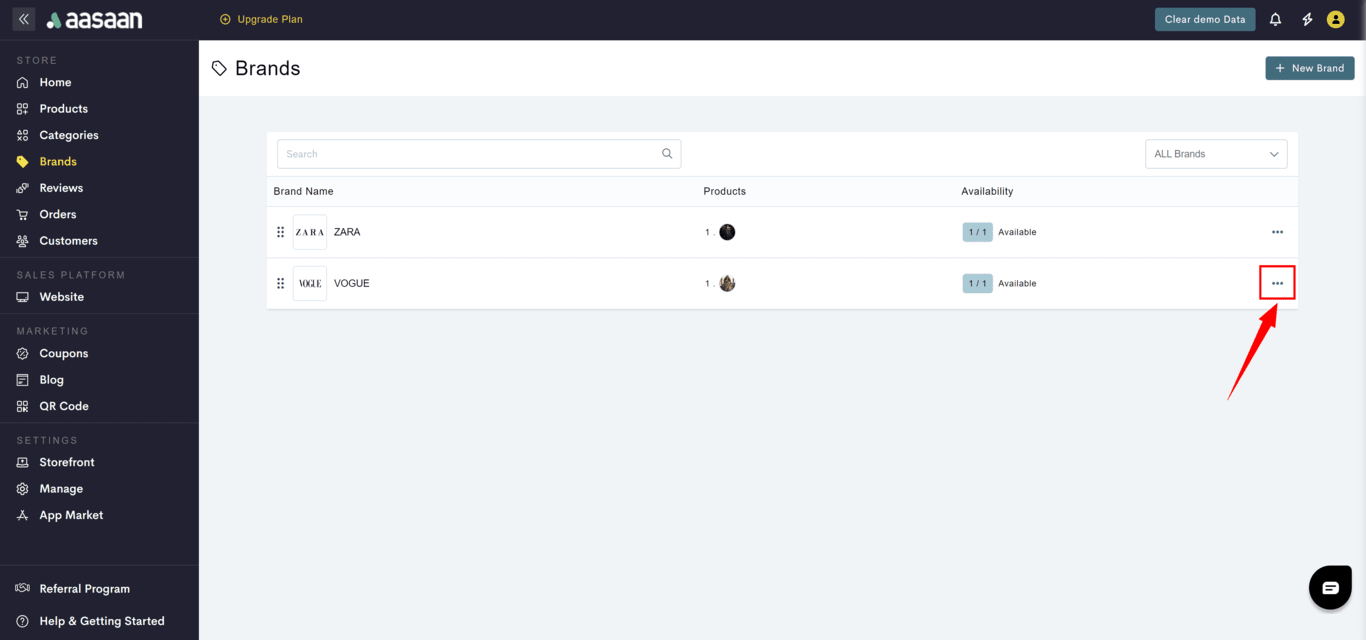
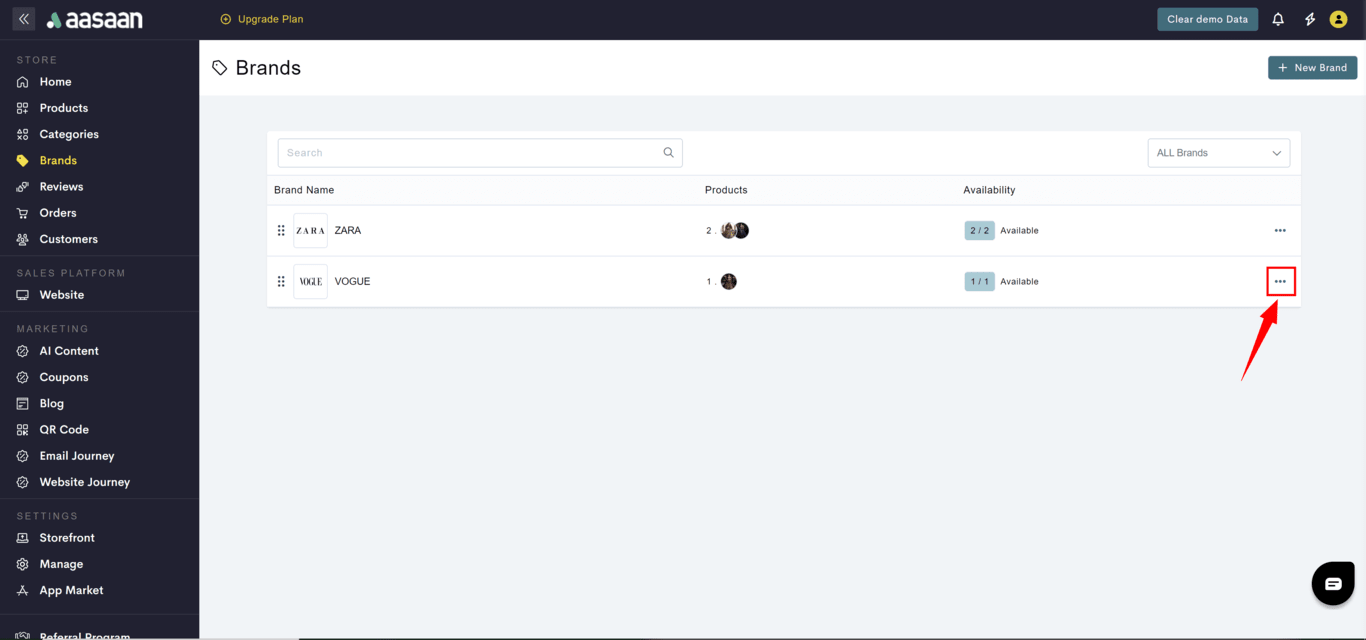
* Click on **...** at the brand you want to modify.
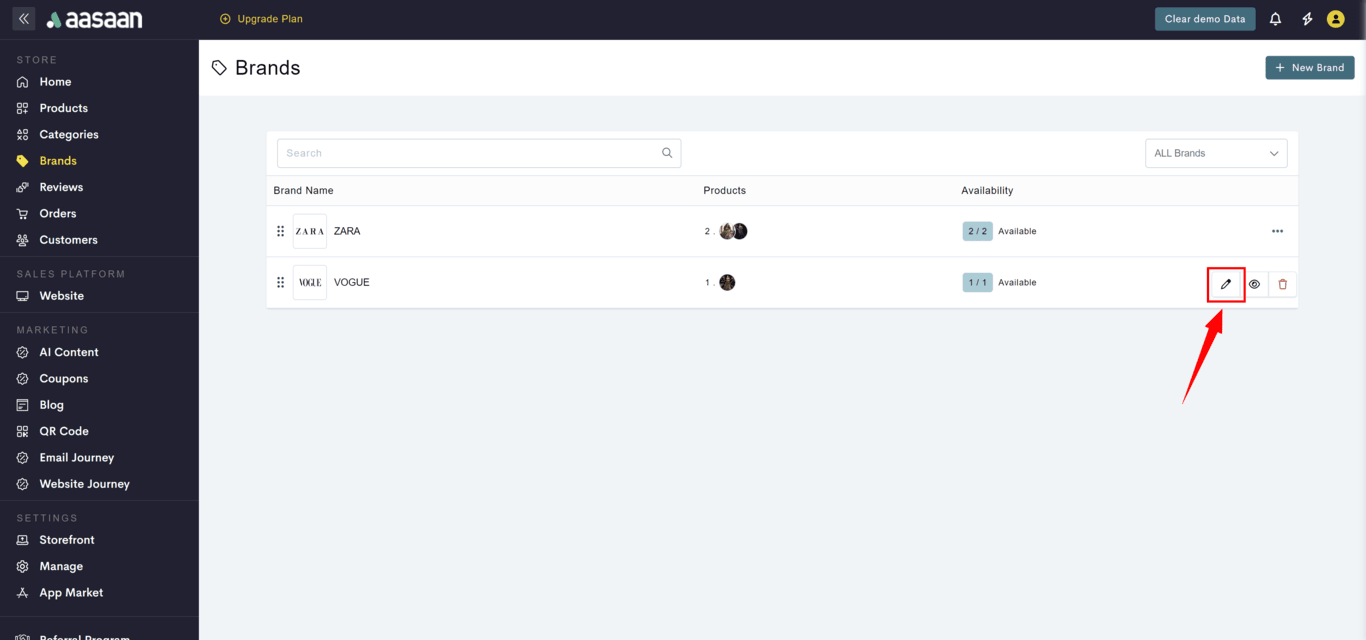
* Click on the ✏️ icon.
* Update the brand information like:
* Brand name
* Description
* Brand logo
* SEO information
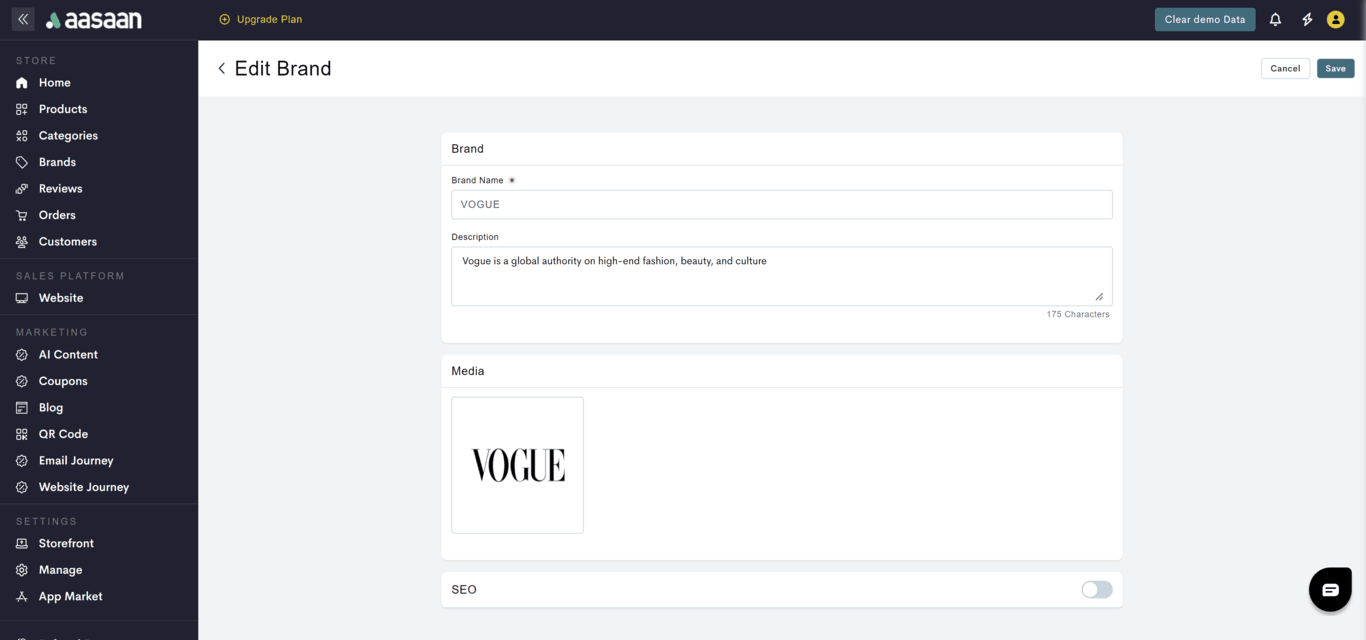
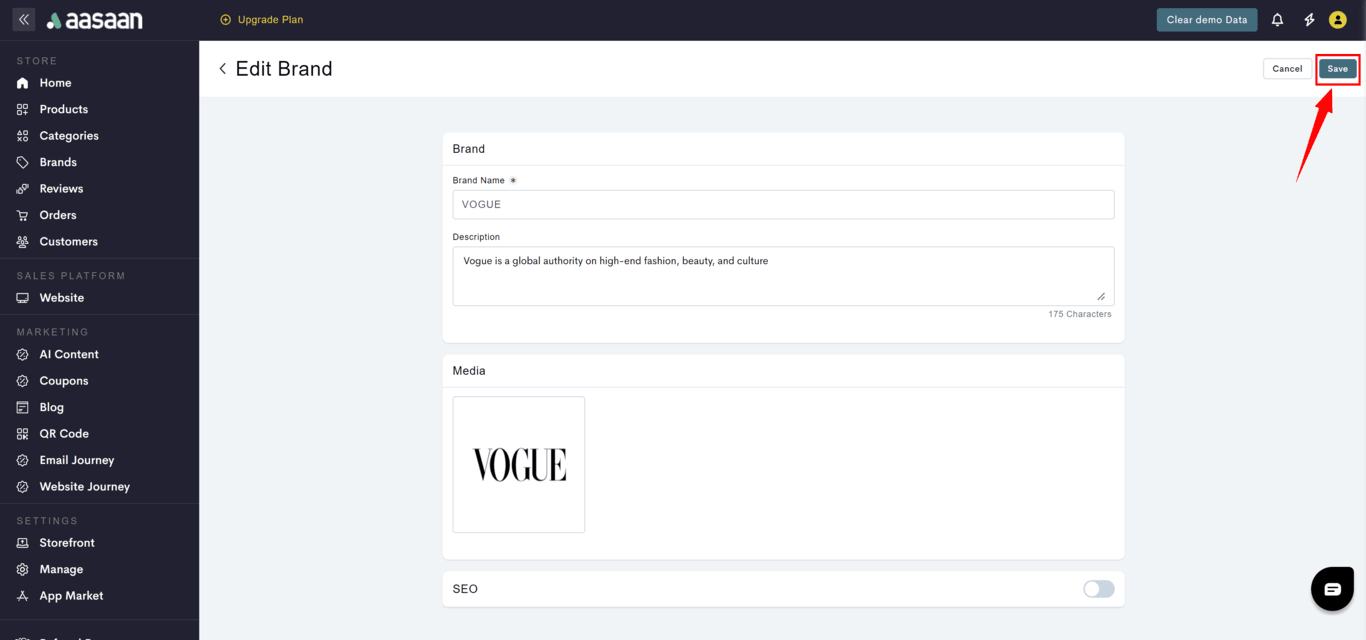
* Click on **Save**.
## Modify Brand
To modify a brand in your store:
* Login to your aasaan desktop admin panel and click on **Brands**.
* Click on **...** at the brand you want to modify.
* Click on the ✏️ icon.
* Update the brand information like:
* Brand name
* Description
* Brand logo
* SEO information
* Click on **Save**.
 ## Delete Brand
To delete a brand in your store:
* Login to your aasaan desktop admin panel and click on **Brands**.
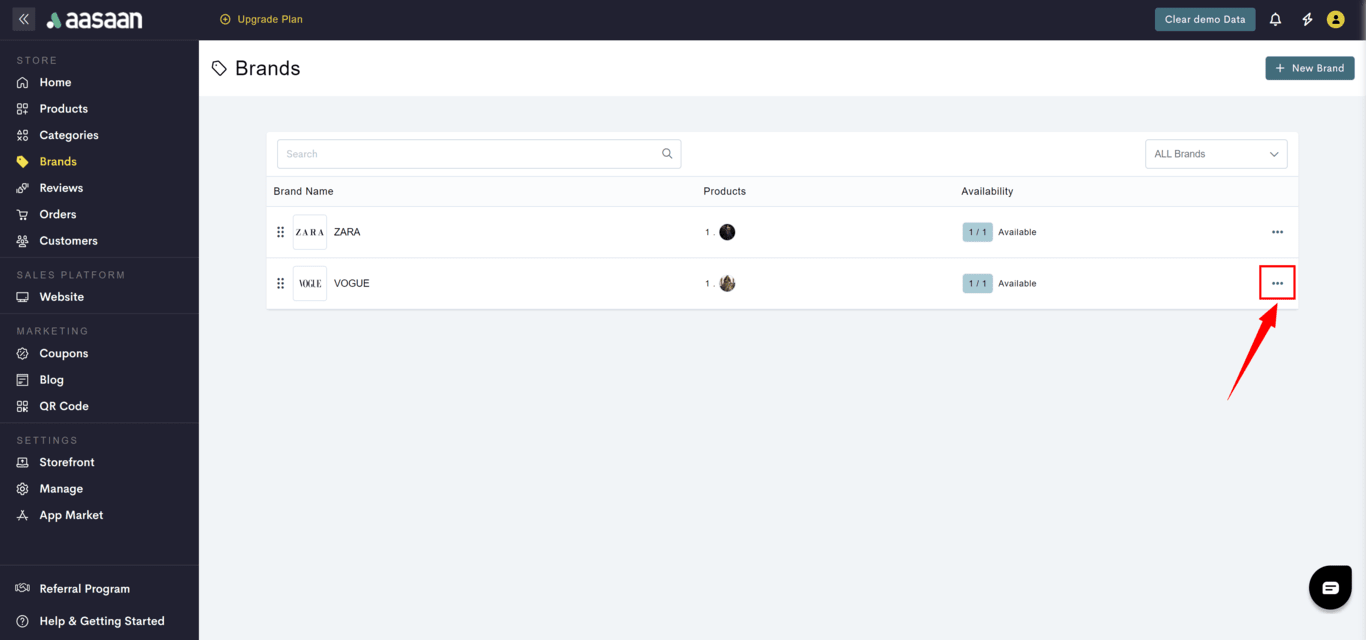
* Click on **...** at the brand you want to delete.
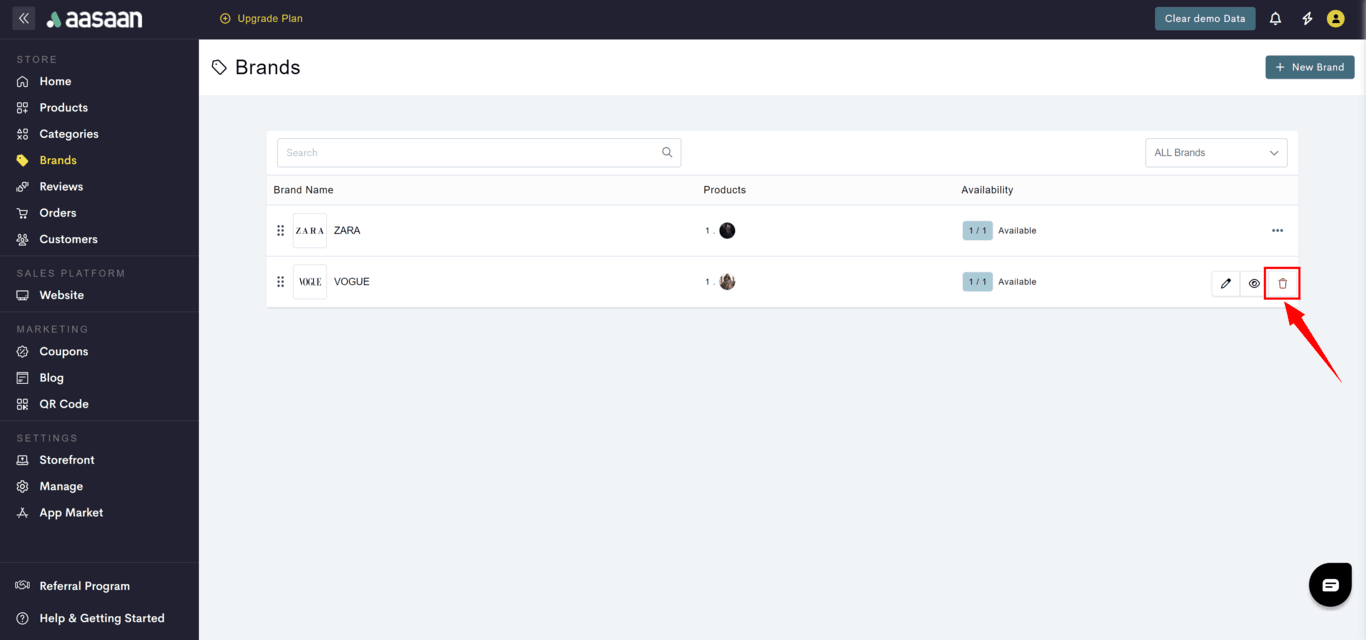
* Click on the **🗑** icon.
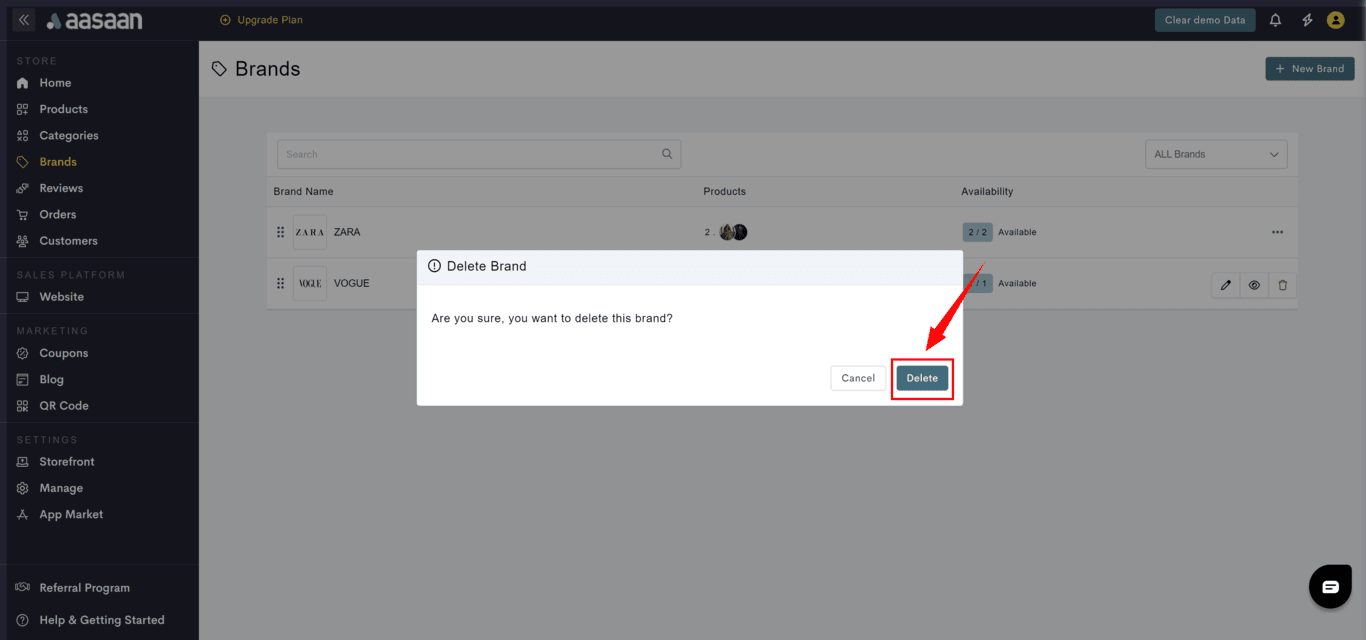
* A confirmation popup will be shown for your acknowledgement.
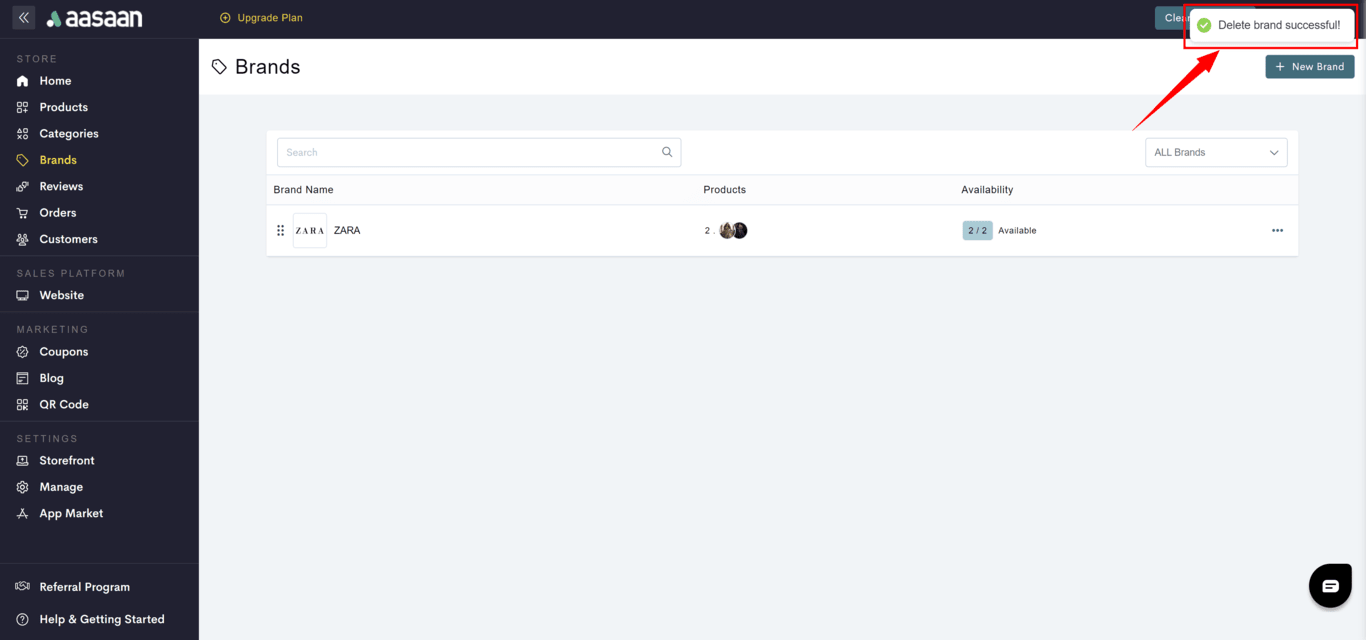
* When you press **delete**, the brand would be deleted.
## Delete Brand
To delete a brand in your store:
* Login to your aasaan desktop admin panel and click on **Brands**.
* Click on **...** at the brand you want to delete.
* Click on the **🗑** icon.
* A confirmation popup will be shown for your acknowledgement.
* When you press **delete**, the brand would be deleted.
 ## Hide / Unhide Brand
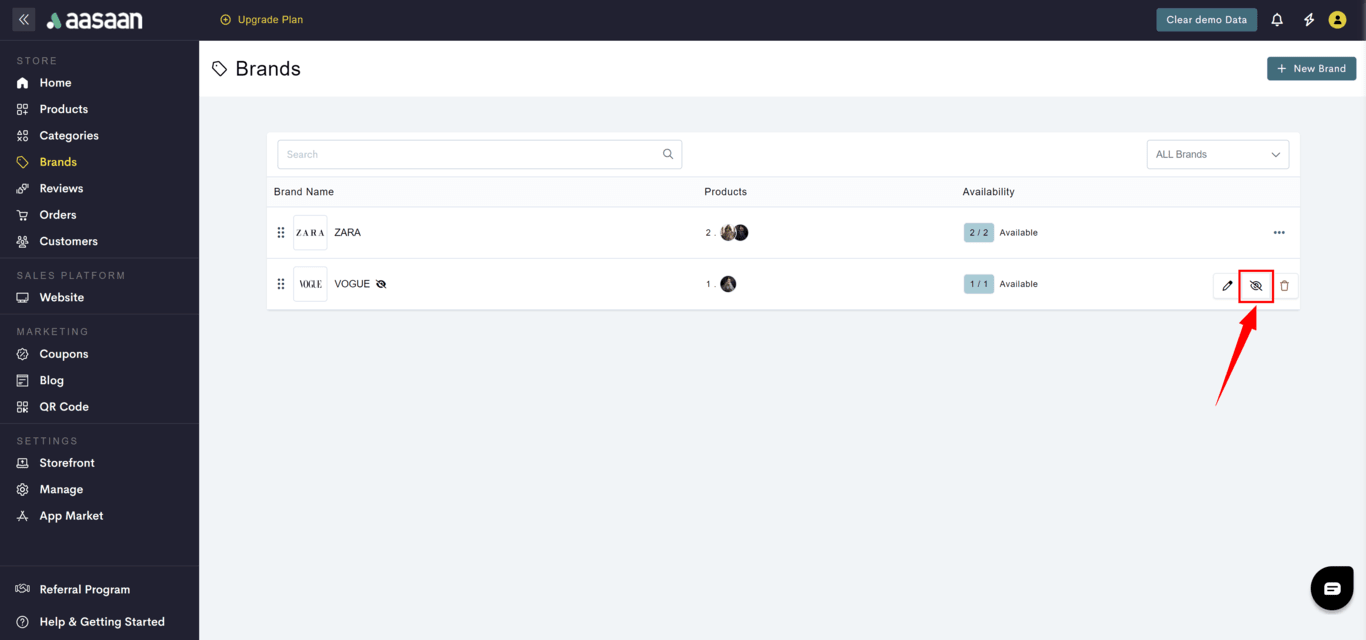
To hide a brand in your store:
* Login to your aasaan desktop admin panel and click on **Brands**.
* Click on **...** at the brand you want to delete.
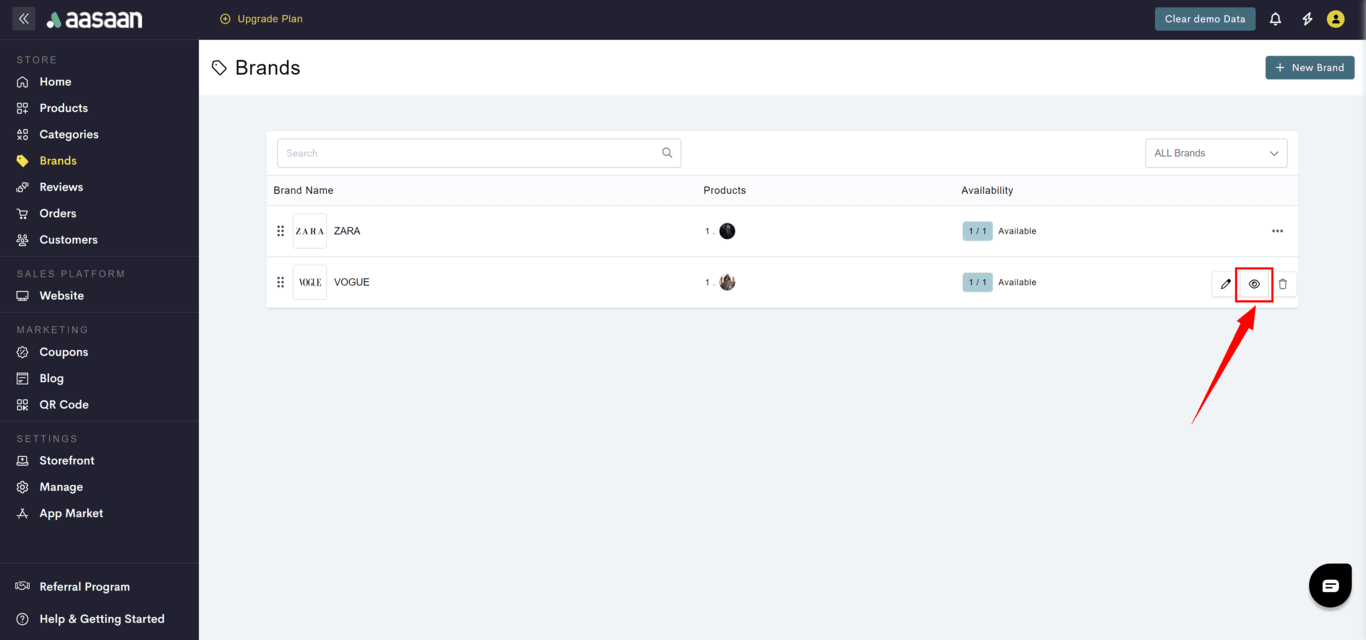
* Click on the **eye** icon.
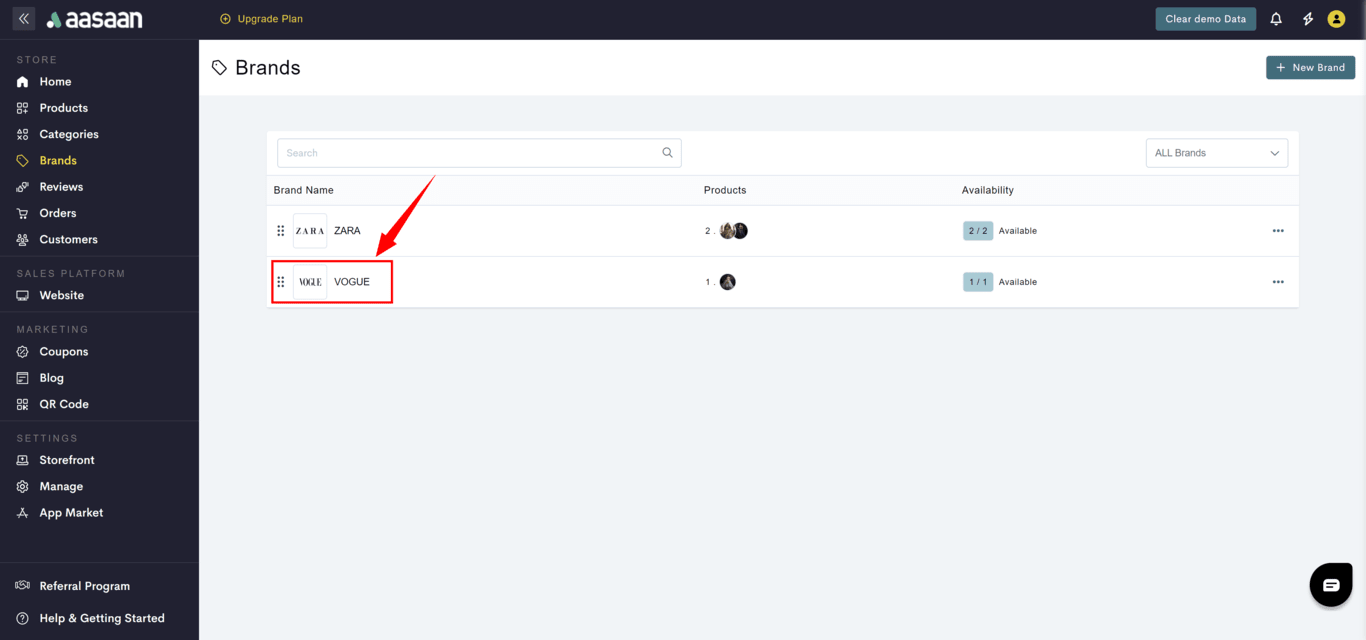
To unhide a brand in your store:
* Login to your aasaan desktop admin panel and click on **Brands**.
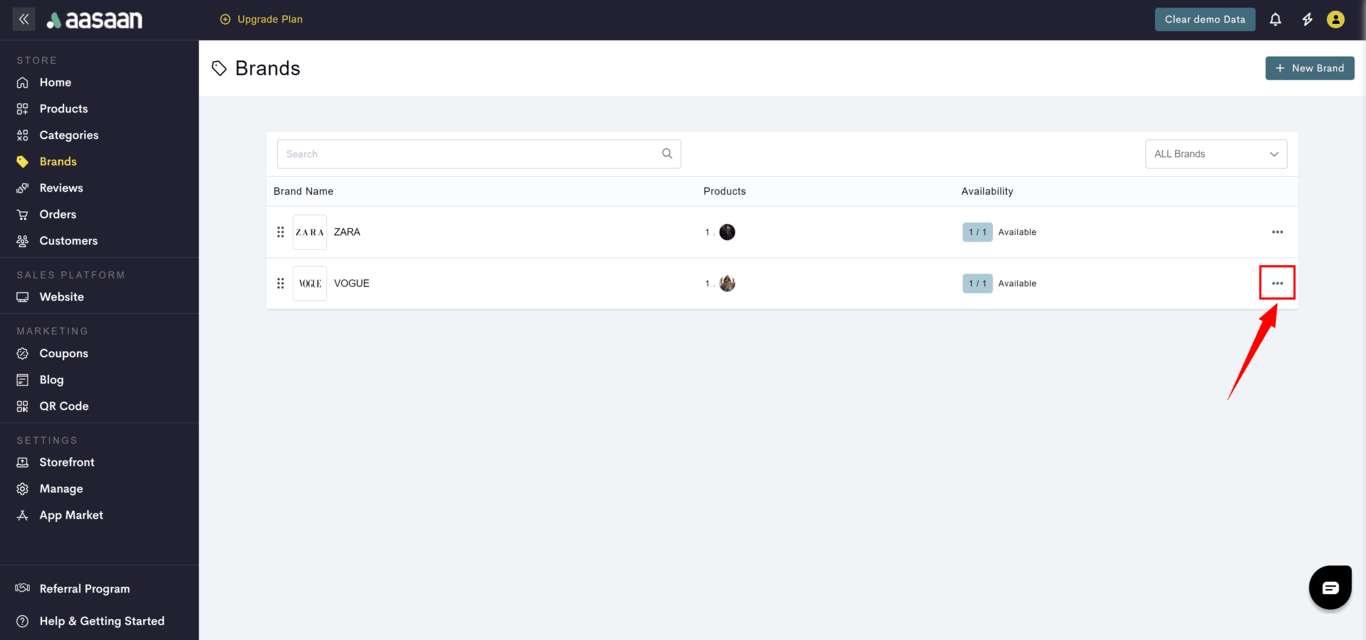
* Click on **...** at the brand you want to delete.
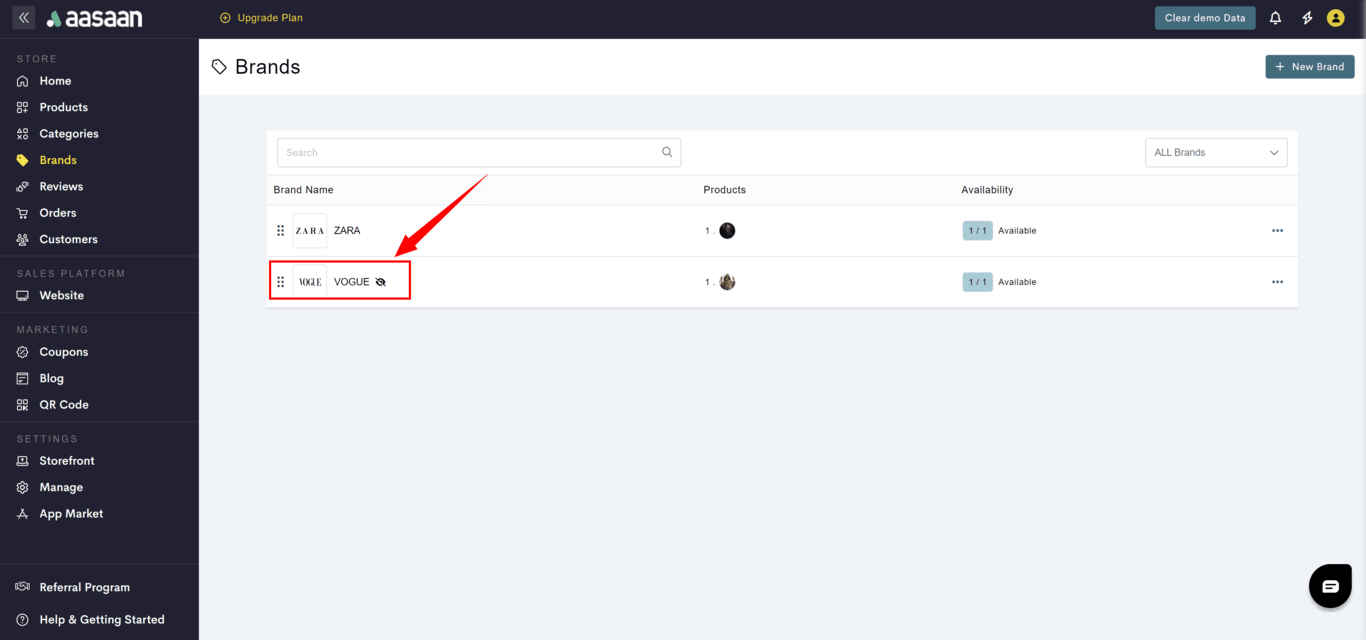
* Click on the **crossed eye** icon.
## Hide / Unhide Brand
To hide a brand in your store:
* Login to your aasaan desktop admin panel and click on **Brands**.
* Click on **...** at the brand you want to delete.
* Click on the **eye** icon.
To unhide a brand in your store:
* Login to your aasaan desktop admin panel and click on **Brands**.
* Click on **...** at the brand you want to delete.
* Click on the **crossed eye** icon.