> ## Documentation Index
> Fetch the complete documentation index at: https://help.aasaan.app/llms.txt
> Use this file to discover all available pages before exploring further.
# Pages
> Overview of Creating, Managing, and Customizing Pages in Aasaan
## Pages
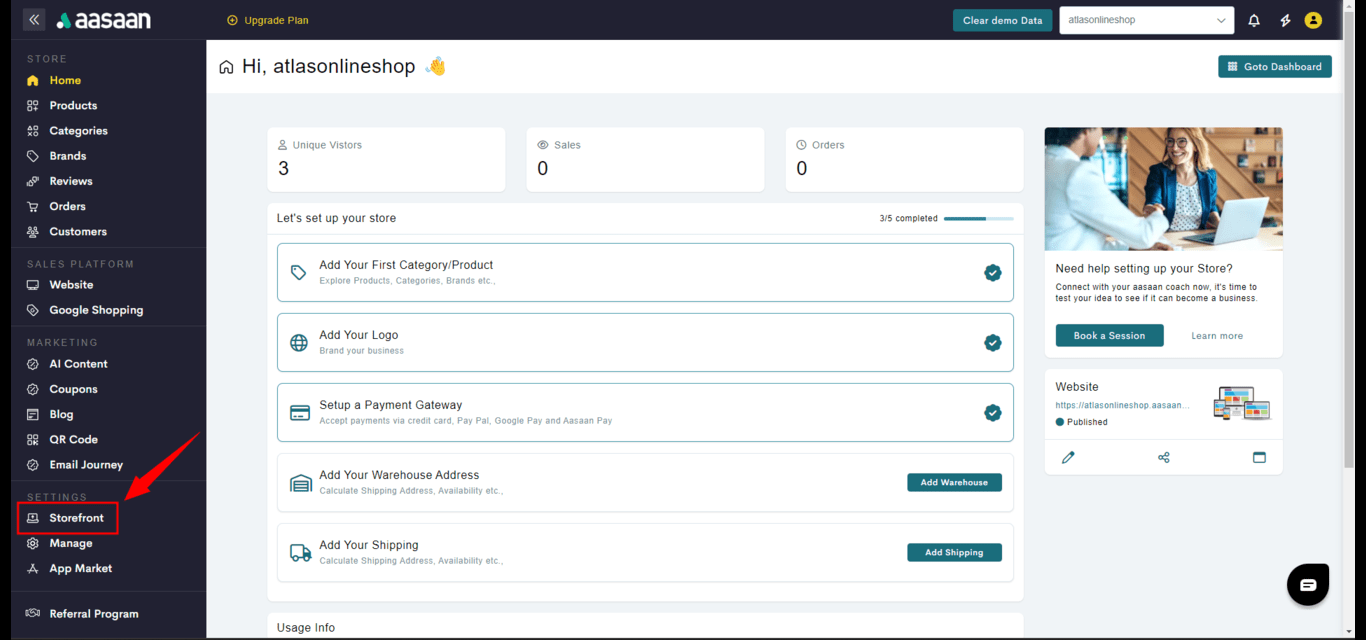
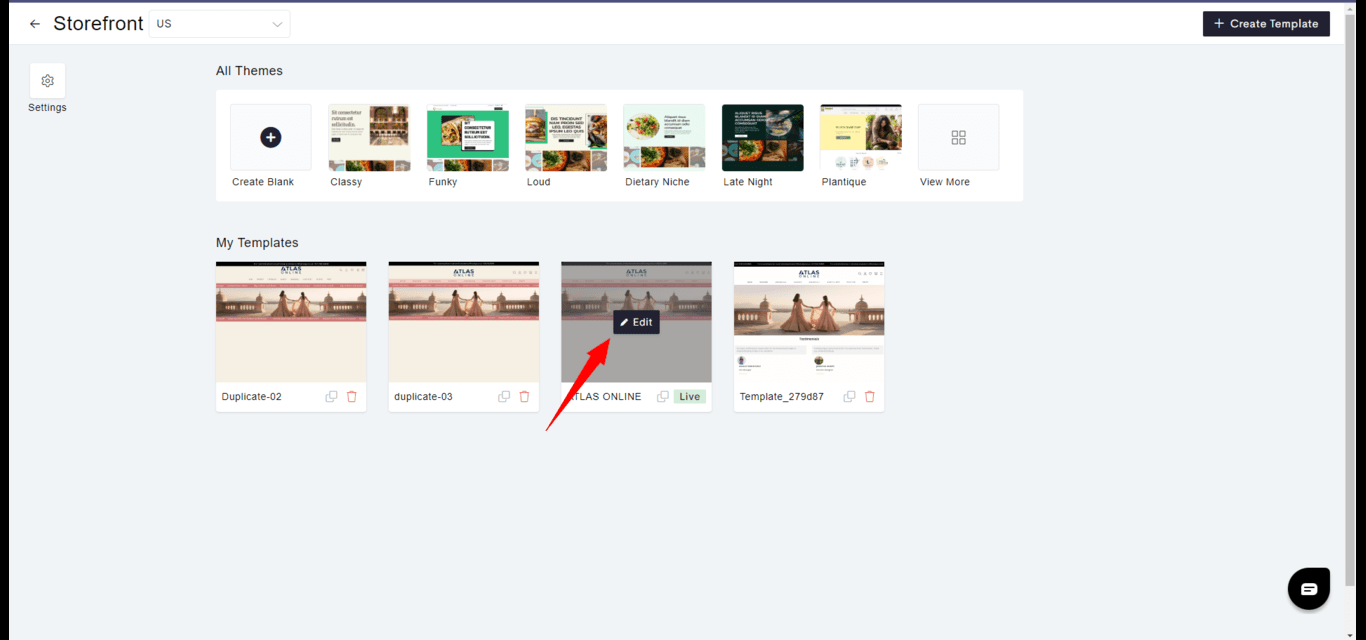
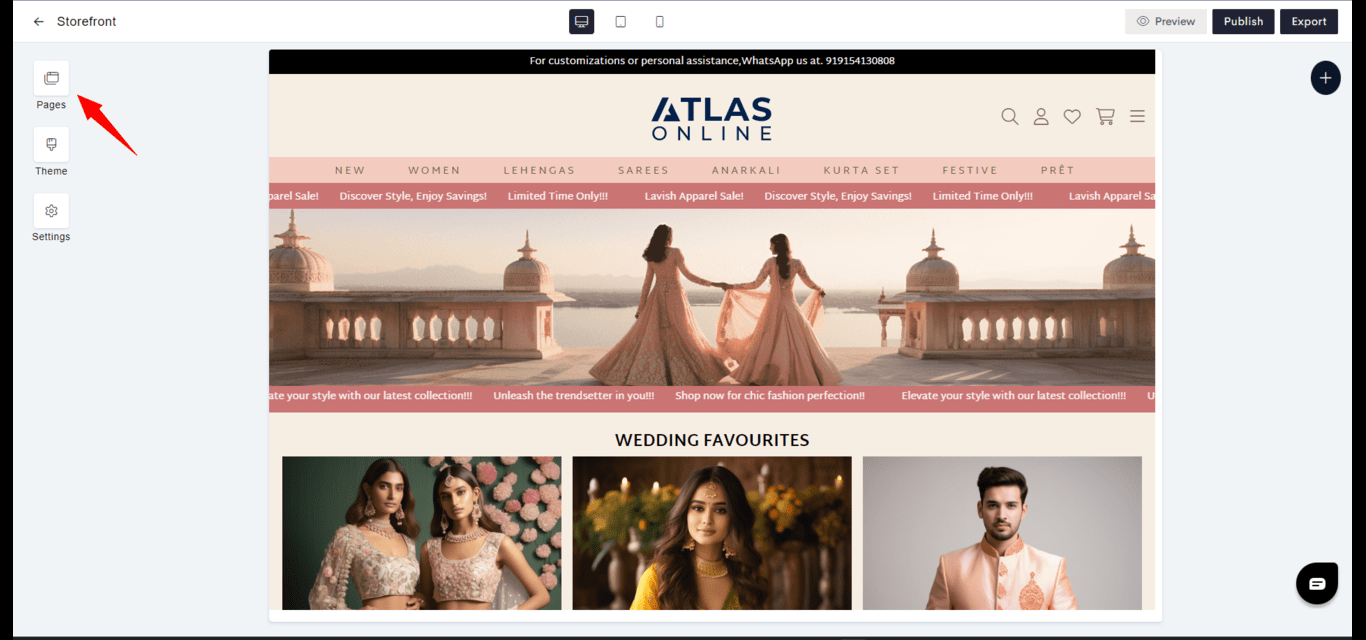
The Pages feature in Aasaan is a comprehensive tool for managing your website's pages. It allows you to view all your pages, add new ones, modify settings, and manage page organization.
 ### Default Pages
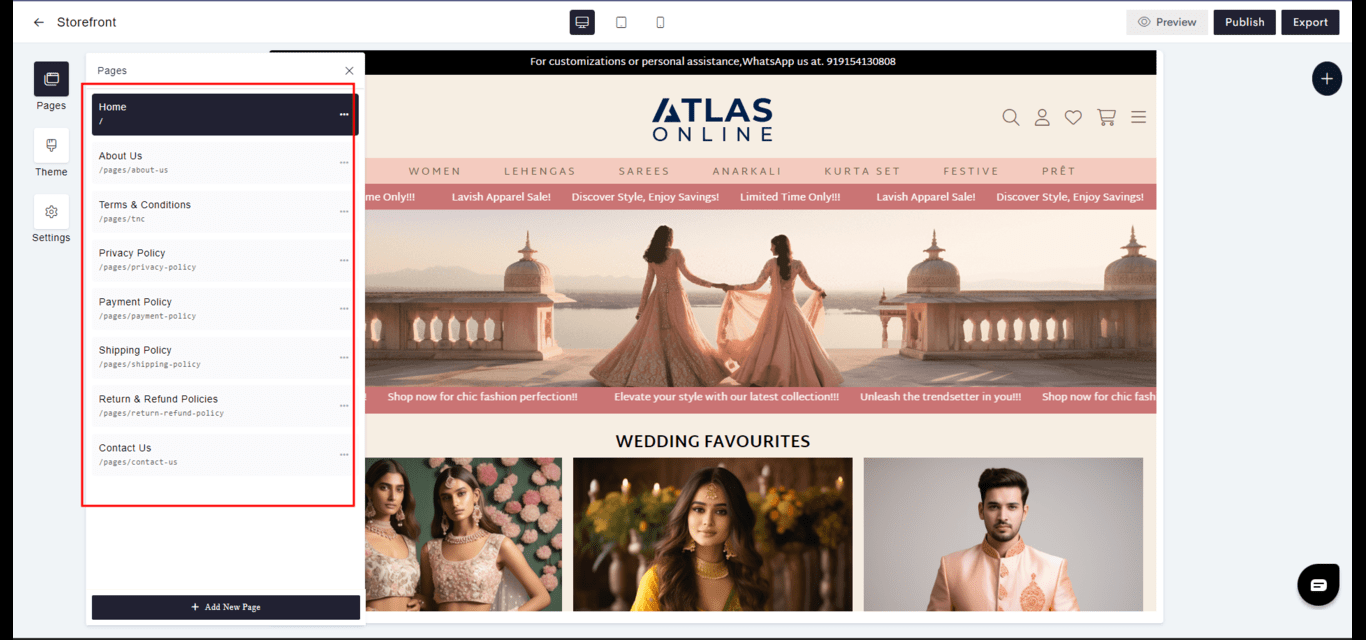
When you create a website with Aasaan, there are several default pages that come with every template. These pages are essential to the structure of your website and cannot be deleted:
* **Home** - The landing page of your website.
* **About Us** - A page that describes your company or organization.
* **Terms & Conditions** - Legal agreements between you and the user.
* **Privacy Policy** - A statement that discloses some or all of the ways you gather, use, disclose, and manage a customer or client's data.
* **Payment Policy** - Details on payment methods and processes.
* **Shipping Policy** - Information regarding shipping methods and costs.
* **Return & Refund Policies** - Guidelines on how customers can return products and receive refunds.
* **Contact Us** - A page for customers to reach out for more information or support.
### Default Pages
When you create a website with Aasaan, there are several default pages that come with every template. These pages are essential to the structure of your website and cannot be deleted:
* **Home** - The landing page of your website.
* **About Us** - A page that describes your company or organization.
* **Terms & Conditions** - Legal agreements between you and the user.
* **Privacy Policy** - A statement that discloses some or all of the ways you gather, use, disclose, and manage a customer or client's data.
* **Payment Policy** - Details on payment methods and processes.
* **Shipping Policy** - Information regarding shipping methods and costs.
* **Return & Refund Policies** - Guidelines on how customers can return products and receive refunds.
* **Contact Us** - A page for customers to reach out for more information or support.
 ### Adding Pages
To add new pages to your Aasaan site:
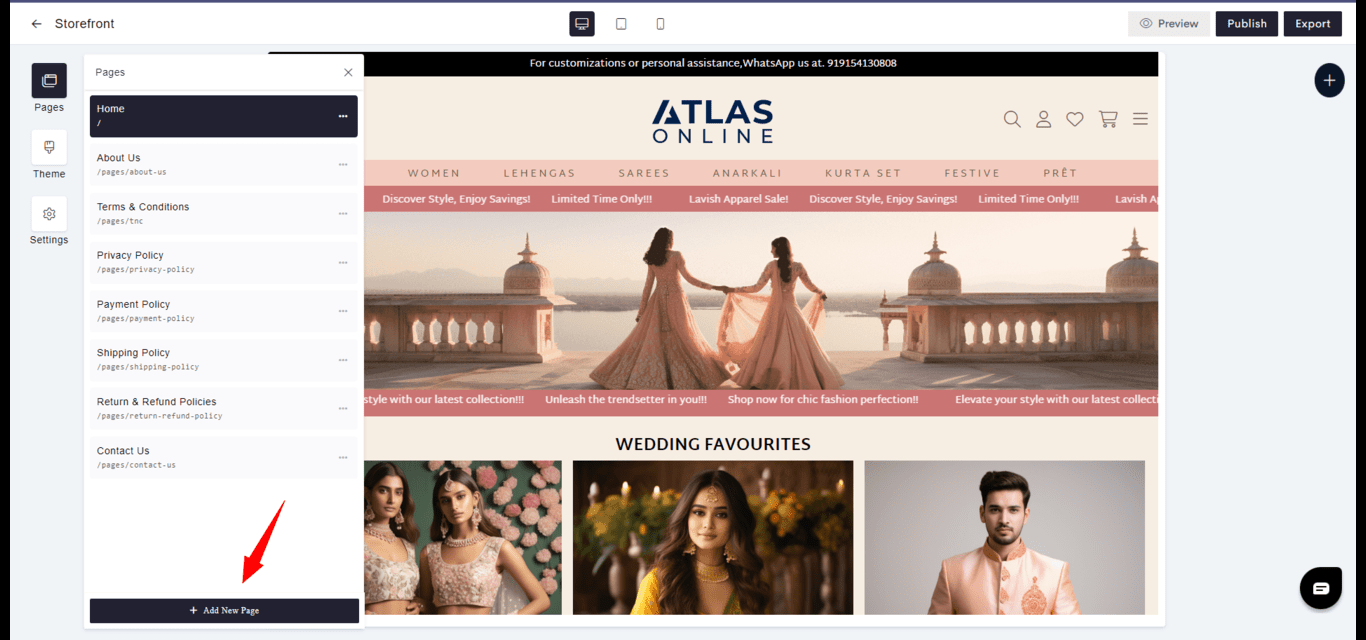
1. Access the Pages section in the Builder.
2. Click the '+ Add New Page' button.
### Adding Pages
To add new pages to your Aasaan site:
1. Access the Pages section in the Builder.
2. Click the '+ Add New Page' button.
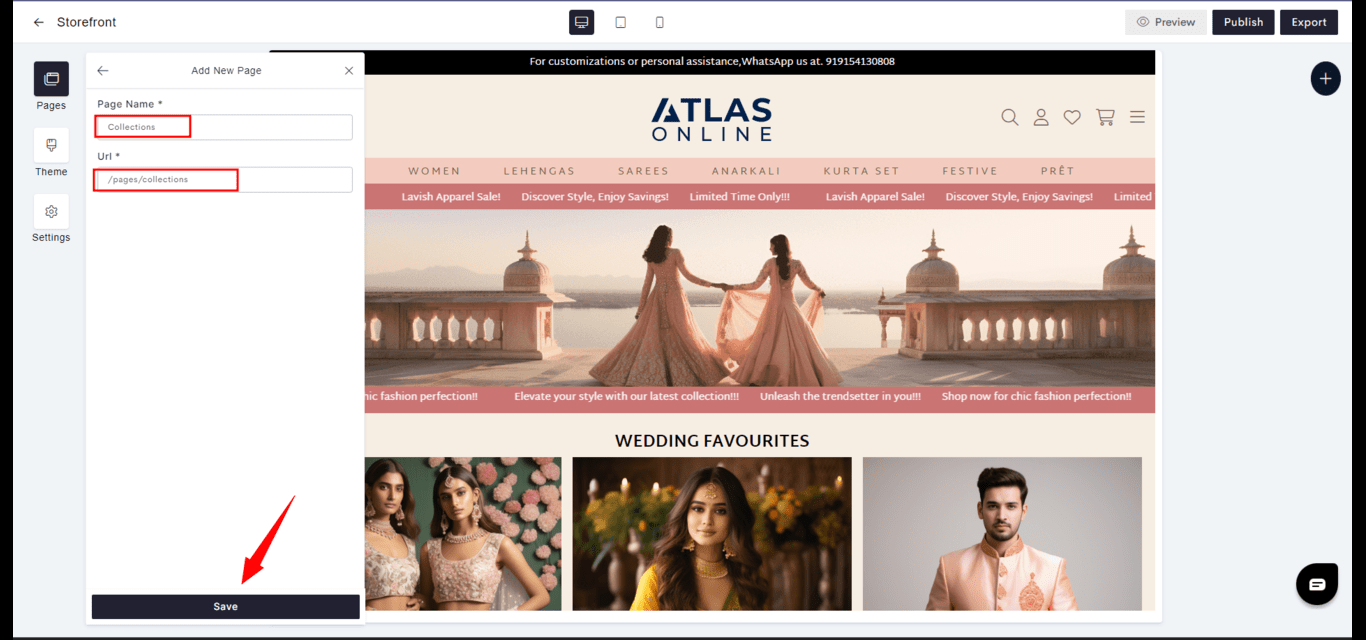
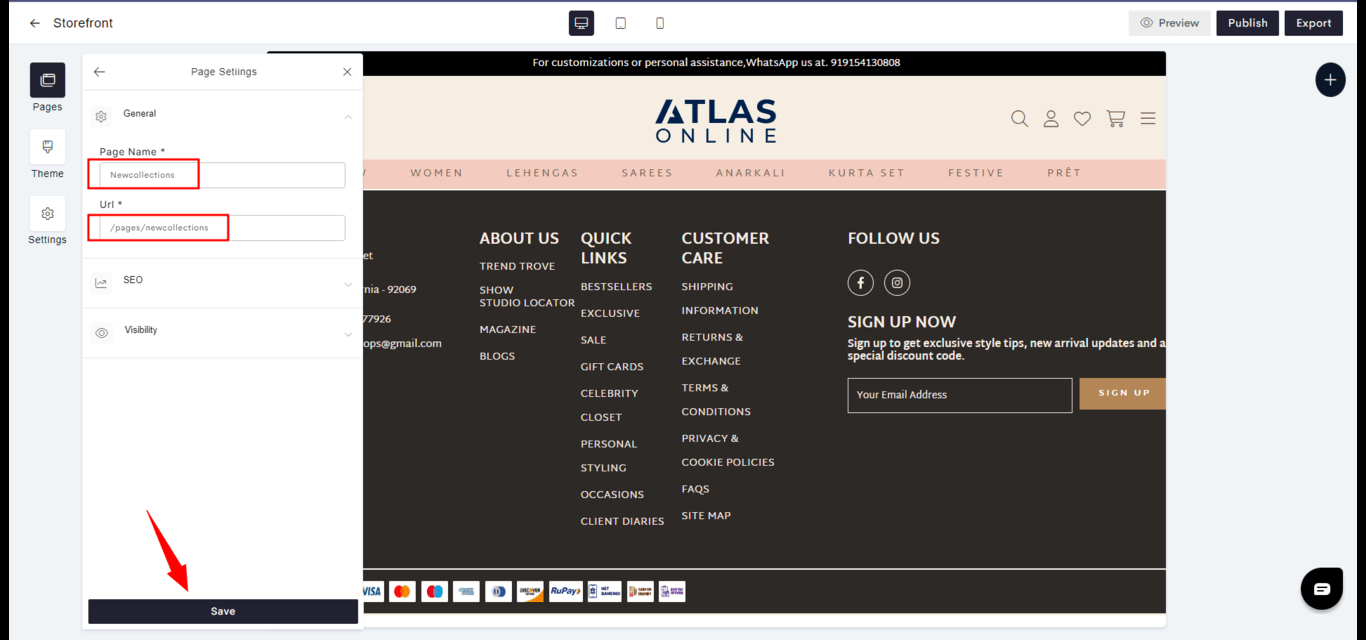
 3. Provide the required information and press **Save**.
 ### Changing Page Settings
Modifying the settings of existing pages is straightforward:
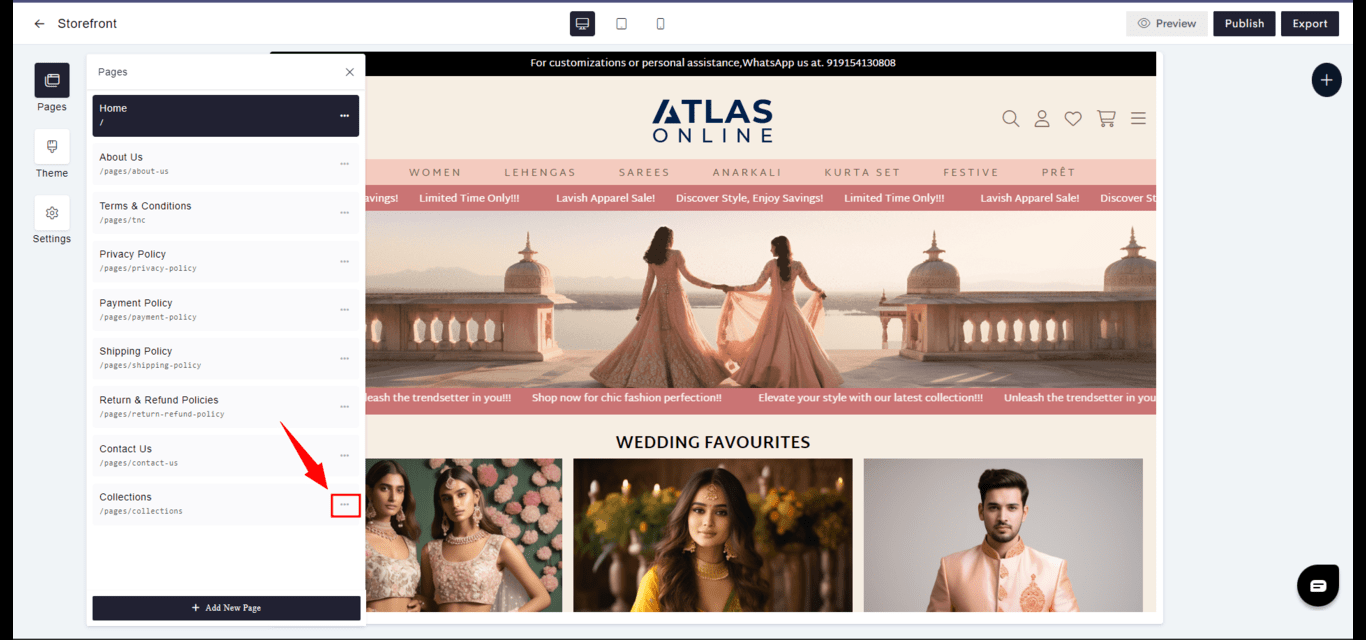
1. Access the Pages section in the Builder..
2. Click **...** against the page for which you want to view/modify its settings and click on settings.
### Changing Page Settings
Modifying the settings of existing pages is straightforward:
1. Access the Pages section in the Builder..
2. Click **...** against the page for which you want to view/modify its settings and click on settings.
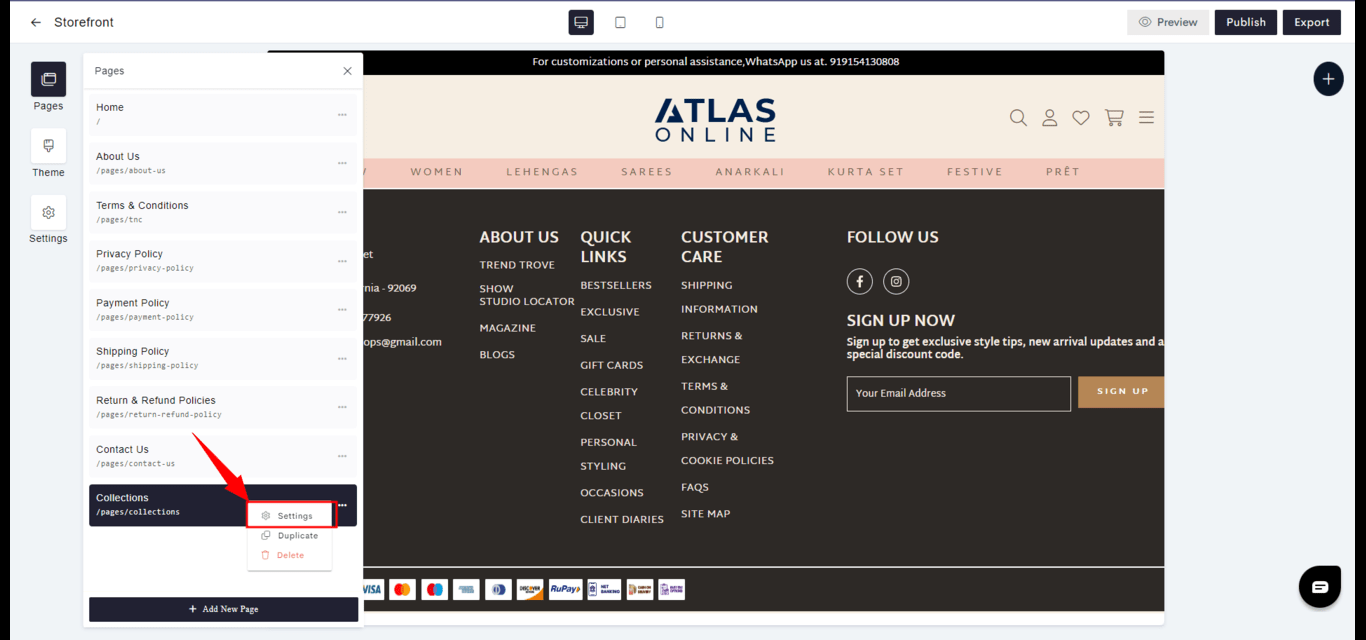 3. Do the necessary changes and press **Save**.
 ### Deleting Pages
To remove a page from your site:
1. Click **...** against the page for which you want to remove.
### Deleting Pages
To remove a page from your site:
1. Click **...** against the page for which you want to remove.
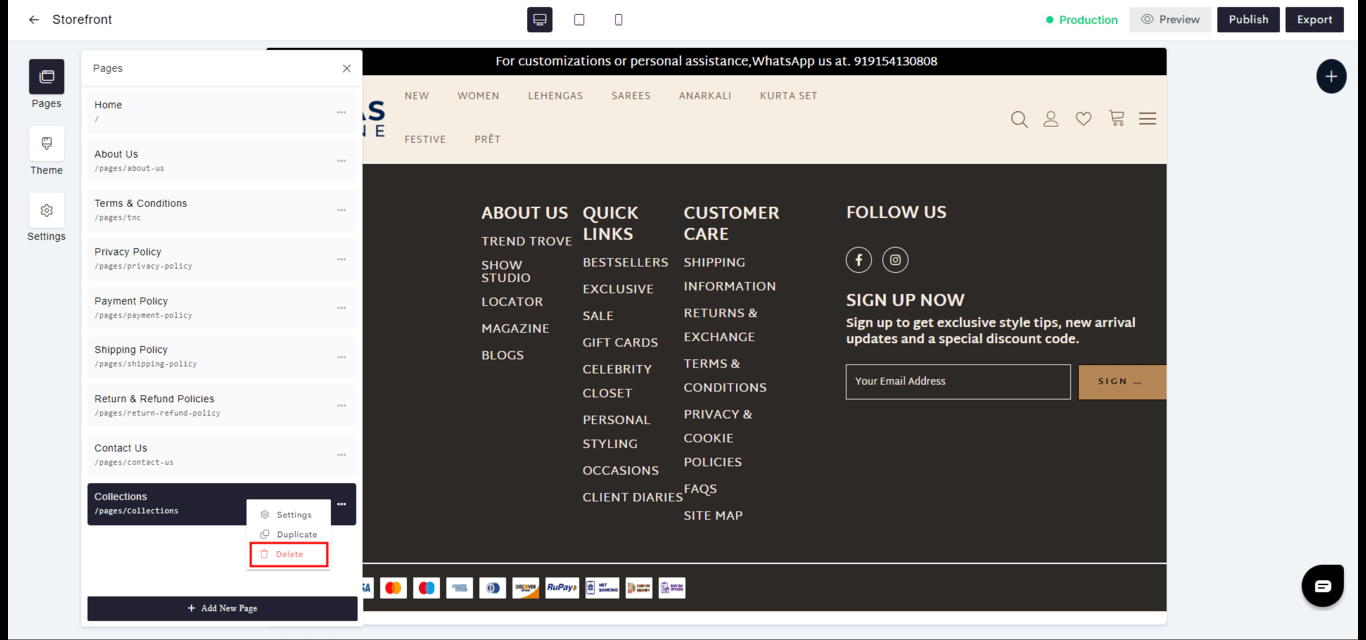
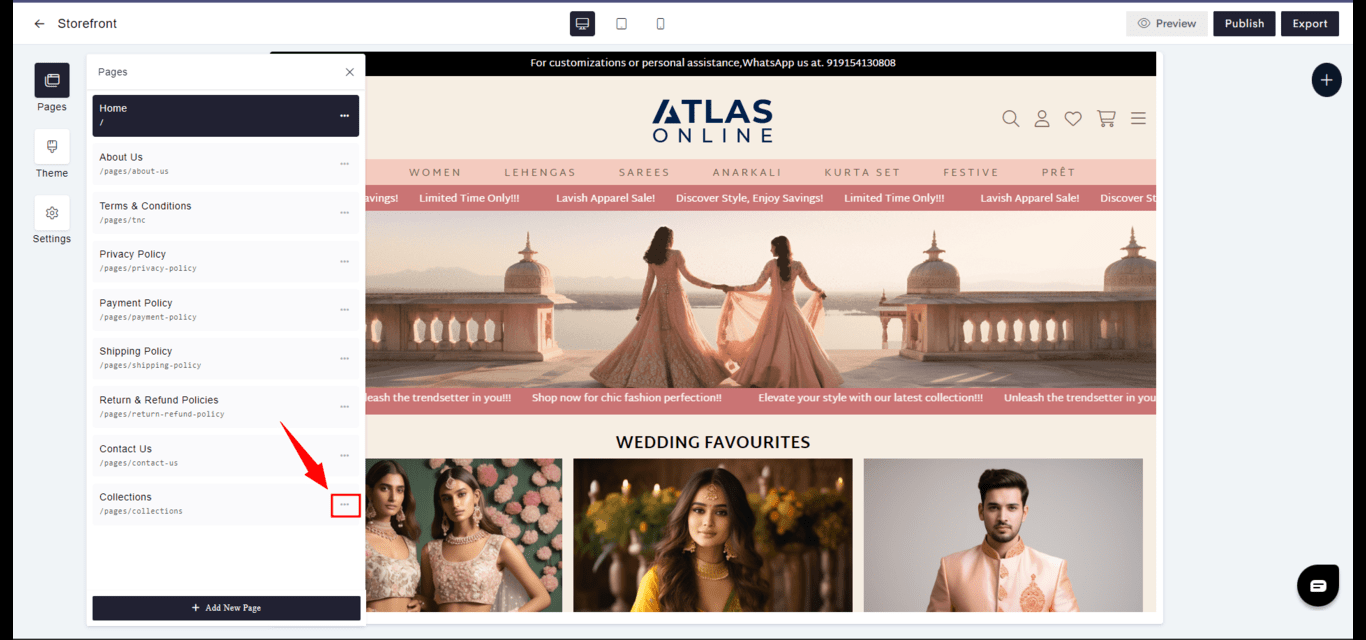 2. Choose 'Delete'.
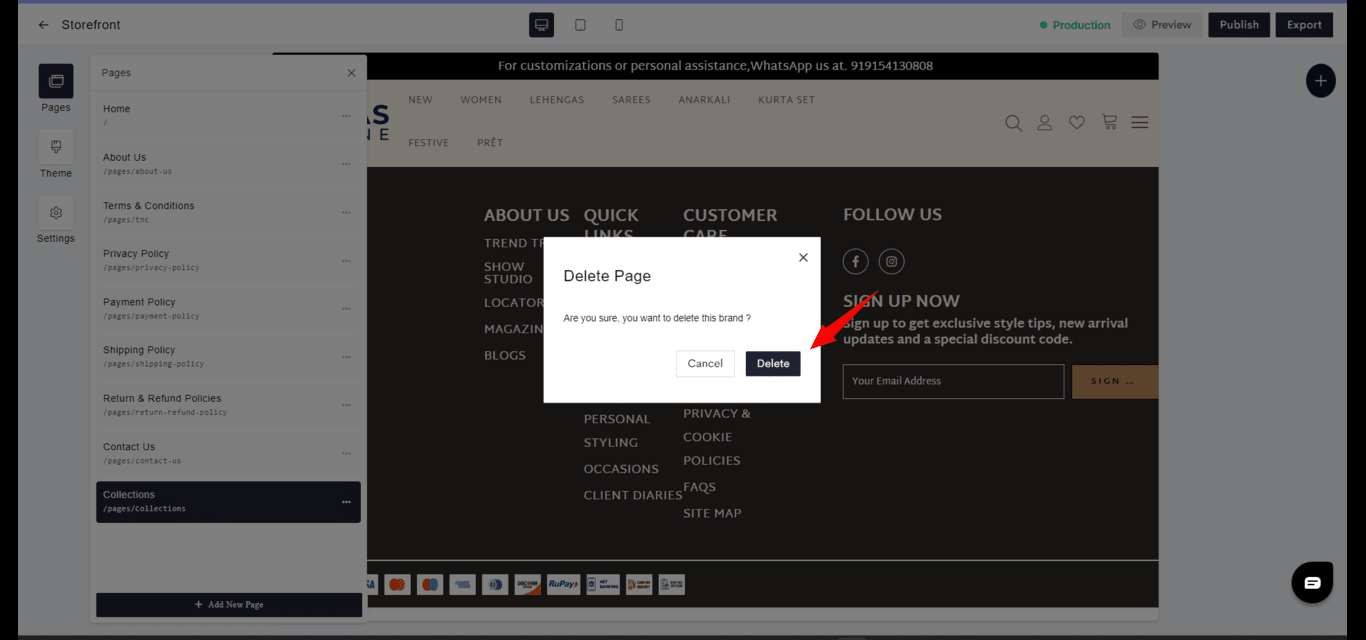
 3. **Confirm Deletion**: After reading the confirmation modal, click 'Delete' to finalize the deletion.
 This Pages feature in Aasaan is designed to offer full control over the structure and navigation of your site, enabling a smooth and efficient process for page management and customization.